
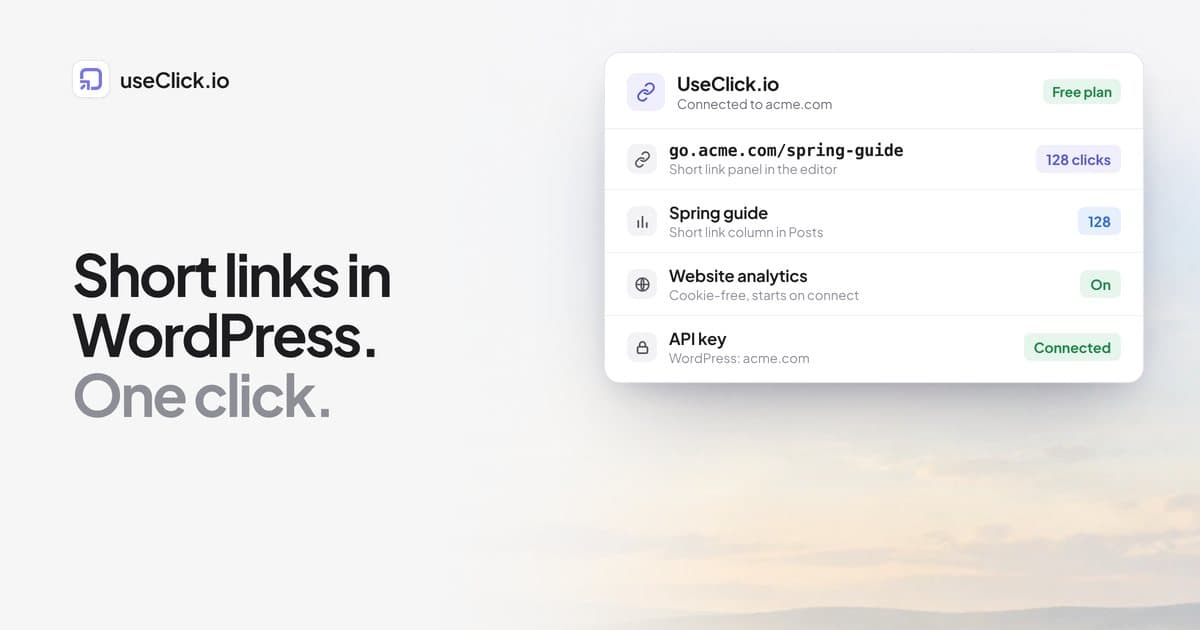
Quick answer: Install the free useClick.io plugin from the WordPress plugin directory, click Connect with useClick.io, sign in and confirm. A Short link panel appears in the post editor, your Posts and Pages lists get a clicks column, and cookie-free website analytics can run inside WordPress. Short links live in your useClick account, not in your WordPress database, so they keep working if you change themes, hosts or plugins. It works on every plan, including Free.
Key Takeaways
- The plugin connects WordPress to your useClick account with one click. There is no key to copy unless you prefer to.
- A short link for a post is one click in the editor, and its clicks show in the posts list.
- Links are stored in useClick, so removing the plugin does not break links you already shared.
- Website analytics starts by itself when you connect, with no cookies and no consent banner.
Why shorten links inside WordPress at all
If you write on WordPress, you share your posts in places where a long URL looks poor or cannot be measured: newsletters, social profiles, podcast show notes, printed material. You also link out from your posts, often to affiliate or partner pages you would like to be able to change later. Doing this in a separate tool means copying and pasting between tabs for every post, and the links drift out of sync with what is actually published.
A link shortener plugin helps in two ways. It puts the "create a link" step where you already work, and it connects each link to the post it belongs to. The important design question is where the links live. A plugin that stores redirects in WordPress ties them to your site: if the site is down, so are the links, and moving hosts means migrating them. Links that live in a separate service keep working independently. That is how the useClick plugin works.
What the plugin does
| Feature | Where |
|---|---|
| Create a short link for a post or page | Short link panel in the block editor sidebar (a box below the content in the classic editor) |
| See each post's clicks | Short link column in Posts and Pages |
| Create and manage links | UseClick.io > Create link and Short links |
| Use your branded domain, campaigns, UTM parameters, country targets | Starter and above |
| Cookie-free website analytics | Starts when you connect, reports in UseClick.io > Website analytics |
| Record visits by AI bots (ChatGPT, Claude, Perplexity and others) | Optional setting |
Features that your plan does not include are marked with the plan that unlocks them, so you can see what you would get before you upgrade. The complete reference is in the WordPress plugin guide.
Install and connect in about a minute
The plugin is free in the WordPress directory at wordpress.org/plugins/useclick. You need to be an administrator, and the plugin needs WordPress 6.5 or newer and PHP 7.4 or newer.
- In WordPress, go to Plugins > Add New Plugin.
- Search for useClick.io, click Install Now, then Activate. (If you have the plugin as a zip file, use Upload Plugin at the top instead.)
- A UseClick.io menu appears in the admin sidebar. Click Connect with useClick.io in the notice at the top of the Plugins screen, or on UseClick.io > Settings.
- useclick.io opens. Sign in, or choose Create a free account (it only needs an email address).
- Confirm Connect your-site.com?
- You return to UseClick.io > Settings, which now shows Connected to UseClick.io and your plan.
Behind the scenes this creates an API key named "WordPress: your-site.com" in your account and passes it to your site directly, not through the browser. You can see or revoke it at any time in your account's API keys.
Connecting by hand
If your site blocks the redirect, or you prefer to manage the key yourself, create a key under Account > API keys in useClick, then paste it in UseClick.io > Settings under Or paste an API key and click Connect. The key is shown only once, so paste it straight away. Use a separate key for each WordPress site so that you can revoke one without affecting the others.
On sites where several people have admin access, or where the database is copied between servers, you can keep the key out of the database by defining USECLICK_API_KEY in wp-config.php. The settings screen then shows "Set in wp-config.php".
Creating a short link for a post
Open a published post or page in the block editor and find the Short link panel in the sidebar. One click creates the short link and shows its clicks, and you can copy it from the same place. Use that link in your newsletter, bio or social post, and the clicks come back to the panel.
Two habits make this far more useful:
- One link per placement. If the same post goes to your newsletter and to LinkedIn, create a separate link for each so you can tell which one sent the visitors. How to add a trackable link on every platform lists the places.
- Use your own domain. A link like
go.yourbrand.com/spring-guidereads as yours. Custom domains are included on every plan, and the setup guide takes about ten minutes.
Reading the numbers in WordPress
The Short link column in Posts and Pages shows each link with its total clicks, so you can see at a glance which posts get shared and clicked. The full picture (countries, devices, referrers, unique and total clicks, bot traffic) is in the link's analytics in useClick. For what the numbers mean and how bots are treated, see link analytics and how to see who clicked your link.
Website analytics without cookies
When you connect, the plugin reads your site's domain from Settings > General > Site Address, adds it to your useClick account (or uses the website you already have for that domain) and switches the tracker on. Your reports (visitors, pages, sources, countries, devices and AI bots) appear in WordPress under UseClick.io > Website analytics.
The tracker sets no cookies and stores no IP addresses, so it does not need a consent banner for analytics (why that is the case). Website analytics beyond the free trial need Starter or above. Adding the site also starts uptime monitoring, which emails you when the site stops responding.
Seeing AI crawlers
Most AI crawlers never run JavaScript, so a normal tracking script cannot see them. The plugin can report them from the server instead. Turn on AI and search bots under Website analytics (it is on by default in version 1.4 and newer). What it shows and how to read it is covered in how to see which AI bots visit your website.
What happens if you remove the plugin
Your links keep working. They live in your useClick account, not in WordPress. Click Disconnect in UseClick.io > Settings to remove the key from your site, then revoke it in your account's API keys. Links you shared stay live; what you lose is the editor panel and the posts-list column.
Plans and limits
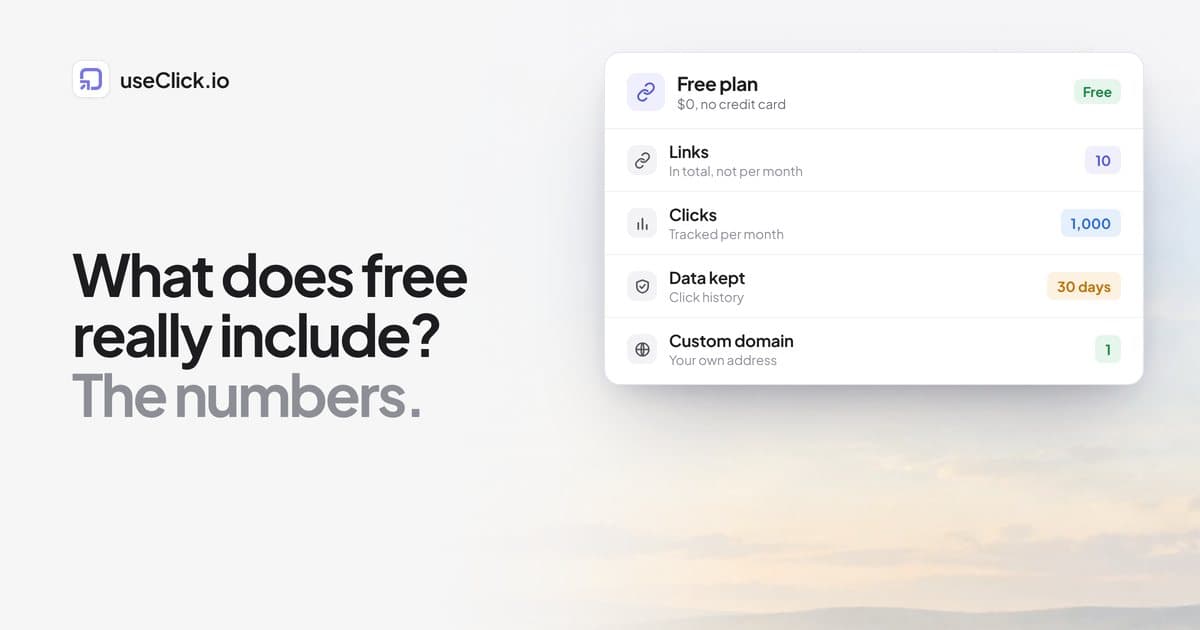
Everything above works on every plan, including Free, within the plan's limits: 10 links in total and 1,000 tracked clicks per month on Free, more on the paid plans. Branded domains for links, campaigns, UTM parameters and country targets in the plugin need Starter or above. Compare the plans before you roll it out across many posts.
Troubleshooting the common problems
- "The connection could not be confirmed". The connect step took more than an hour, or you finished it in a different browser from the one you started in. Click Connect with useClick.io again.
- "This connect link has expired or was already used". Each connect link works once, for ten minutes. Start again from WordPress.
- "UseClick.io did not accept the API key". Check that nothing is missing from the start (
uc_live_) or end of the key and that there are no spaces, and that it is not disabled or revoked. - "Could not reach UseClick.io". Your server could not connect to
useclick.io. A firewall or security plugin that blocks outgoing requests is the usual cause. Allow outgoing HTTPS touseclick.io. - "Rate limit reached". Each key has a per-minute limit from your plan (100 requests per minute on Free). Wait a minute, or create a new key after an upgrade to get the higher limit.
Frequently asked questions
Is there a free link shortener plugin for WordPress?
Yes. The useClick plugin is free in the WordPress directory and works with the free plan. The limits are those of your useClick plan.
Do short links stop working if I deactivate the plugin?
No. The links are stored in your useClick account and redirect from there. Deactivating or removing the plugin only removes the editor panel and column.
Can I use my own domain for the links?
Yes. Custom domains are included on every plan. Using one for the plugin's links needs Starter or above.
Does it slow down my site?
Redirects never go through your WordPress site, because the links live on useClick. The plugin and the optional analytics tracker do add their own requests, so check your page speed after installing it, as you would with any plugin.
Does the analytics tracker need a cookie banner?
No cookies are set and no IP addresses are stored. Check the rules that apply to your site and audience, but cookie-free tracking is designed to avoid the consent requirement for analytics cookies.
Which WordPress and PHP versions do I need?
WordPress 6.5 or newer and PHP 7.4 or newer.
Can I connect more than one WordPress site?
Yes. Each site gets its own key, so you can revoke one without touching the others.
The decision in one paragraph
If you publish on WordPress and share your posts anywhere you cannot see who clicks, the plugin removes the copy-and-paste step: one click for a short link in the editor, clicks in the posts list and cookie-free analytics next to them, with links that stay yours if you ever move. Install it from the WordPress directory, connect in a minute and start with one post to see the numbers.