
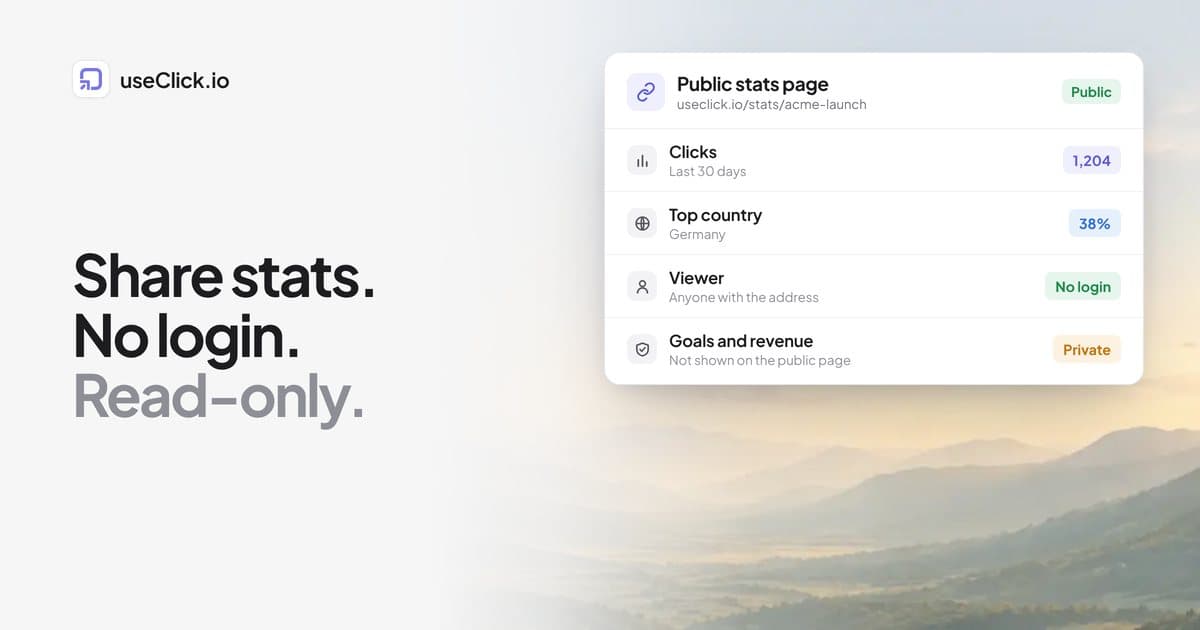
Quick answer: Open the link's analytics page or the website's report in useClick, click Share stats and switch Public stats page on. You get a read-only address for a short link (useclick.io/stats/your-slug) or a website (useclick.io/stats/analytics/your-site-id) that anyone with the address can open, no account needed. Goals, conversions, funnels and revenue stay private, and you can switch the page off at any time. It is on every plan.
Key Takeaways
- A public stats page is read-only, needs no account and is off by default.
- Clients see traffic, locations, sources, devices and bot traffic. They never see your other links or sites, and no IP addresses are stored or shown.
- Anyone with the address can open it, so treat it like a shareable document link.
- Switching it off stops the address immediately, including any embedded globe.
Why screenshots and spreadsheets are the wrong report
If you run campaigns for other people (as an agency, a freelancer, a podcast network, an affiliate partner), the reporting rhythm is familiar: take screenshots, paste them into a slide, export a CSV, answer "can you send the latest numbers?" three times a week. The report is out of date the moment you send it, and every question about it comes back to you.
A live page changes that. The client opens the same address whenever they like and sees the current numbers. You stop being the bottleneck for "how many clicks did the launch link get?", and the client sees the work as it happens, which is what most clients are really asking for.
It also solves the access problem. Giving a client a login means setting up an account, deciding what they are allowed to see and trusting that they will not change anything. A public stats page skips all of that: read-only by design.
What you can share
| What | Public address | Where to switch it on |
|---|---|---|
| A short link's click stats | useclick.io/stats/your-slug |
Share stats on the link's analytics page |
| A website's analytics | useclick.io/stats/analytics/your-site-id |
Share stats in the site header, or Share public stats in the site's menu on the Website analytics overview |
Turn it on in three steps
- Open the link's analytics page or the website's report and click Share stats.
- Switch Public stats page on.
- Copy the address with the copy button, or open it to check what viewers see. Do this before you send it.
On a link, a small green dot on Share stats shows that its page is public. On a website, the button reads Public or Private. The full reference is the public dashboards guide.
What your client sees
On a link stats page
- The short link, with Copy and QR code buttons. The destination stays hidden.
- Clicks, estimated unique visitors, clicks per visitor and bot traffic, compared with the previous period.
- The clicks chart, locations (including a map and globe), referrers, browsers and devices, time-of-day, weekday and monthly charts, and a list of recent clicks with time, country, device, browser and referrer.
- Date range tabs and a time zone picker.
On a website stats page
- The domain with a Visit site button.
- Visitors, page views, views per visit, bounce rate, average time and top channel.
- The page views chart, locations, top pages, traffic sources, technology, a "when people visit" heatmap, weekday and monthly charts and bot traffic.
- User journeys, if your plan includes them (Growth, Pro and Business).
- Date range tabs and a time zone picker.
The date ranges a viewer can pick follow your plan, and data older than your retention window is never shown. For the numbers behind these views, see link analytics and the website analytics reports.
What stays private
This is the part clients, and you, should know before sending the address:
- Goals, conversions, funnels and revenue are not on the public website page.
- Filtering and settings. Viewers cannot filter the report, change anything or see your other links and sites.
- IP addresses. None are shown, because useClick does not store them.
- The destination URL of a short link is hidden on its stats page.
One thing it is not
A public stats page is not a way to keep something secret. Anyone with the short link can still follow it, and anyone with the stats address can view the page. Public pages are not indexed by search engines, but treat the address like a shareable document link. If something truly needs to stay private, do not make it public, and use password protection or expiring links for the link itself.
Three ways agencies use it
- One page per campaign. Create a short link per placement (newsletter, social, partner), share each stats page with whoever owns that placement, and let them watch their own traffic. Where each platform lets you add a link lists the placements to separate.
- A website page in the monthly report. Send the website stats address with the month's summary. The client can look further than your slide without asking you.
- Sponsor and partner proof. For a podcast or newsletter with sponsors, a stats page for the sponsor's link shows them what their audience did. Promo-code copy counts on a bio page are another number to share (creator blocks).
Embedding a traffic globe
The Share stats dialog also has Embed the 3D globe: an interactive globe of your traffic by country that you can drop into a blog post or a client portal. Use Preview to see it, then copy the code:
<iframe src="https://useclick.io/embed/globe/website/your-site-id" width="100%" height="480" style="border:0;border-radius:16px" loading="lazy" title="Traffic globe"></iframe>
The globe shows only counts per country, with no pages, referrers or visitor details. It always shows a "Powered by useClick" badge, and it works only while the public stats page is on.
Limits worth knowing
- Link pages cover the latest 1,000 clicks. A link stats page is built from the link's most recent clicks, up to 1,000. For links with more than that, the public numbers cover only the latest 1,000, while your own dashboard shows everything.
- Changing a slug changes the address. If you rename the link, send the new stats address.
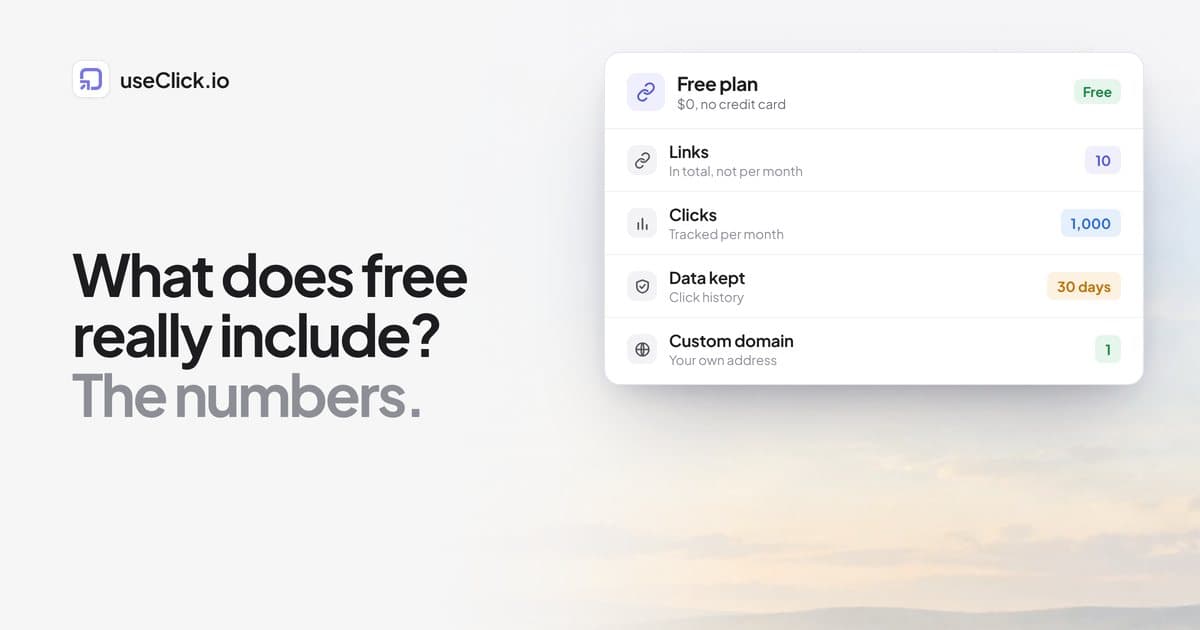
- Plan limits apply. Date ranges and retention follow your plan: 30 days on Free, 12 months on Starter, 24 months on Growth, three years on Pro and Business. See plans.
Switching it off
Open Share stats again and switch Public stats page off. The address stops working right away, and visitors see "These stats are private". Any embedded globe stops loading as well. Do this at the end of an engagement if you do not want the numbers to stay public.
Frequently asked questions
Can I share analytics with a client without a login?
Yes. Switch on a public stats page for the link or website and send the address. The client needs no account and cannot change anything.
Does a public stats page show my other links or websites?
No. It shows only the one link or site you shared.
Can people find the page on Google?
Public pages are not indexed by search engines, but anyone who has the address can open it. Keep the address to the people who should see it.
Can I hide some data?
The public pages already leave out goals, conversions, funnels and revenue, and a link's destination. There is no per-widget hiding. If you need to hide more, do not make the page public and send a CSV export instead (Starter and above).
What happens when I switch it off?
The address stops working immediately and shows "These stats are private". Embedded globes stop loading too.
Does it cost extra?
No. Public stats pages are available on every plan. The date ranges you can show follow your plan.
Can I use it for a website I do not own?
Only for websites and links in your own useClick account. The page shows data that useClick collected for you.
The decision in one paragraph
If you report to clients, a live read-only page beats screenshots: it is current, it needs no login and it stops the "can you send the latest numbers?" thread. Check what viewers see before you share, remember that the address is the only protection, and switch it off when the engagement ends. Start with one link or website and look at the result yourself first.