
Short Link Management
Create branded short links and track every click.
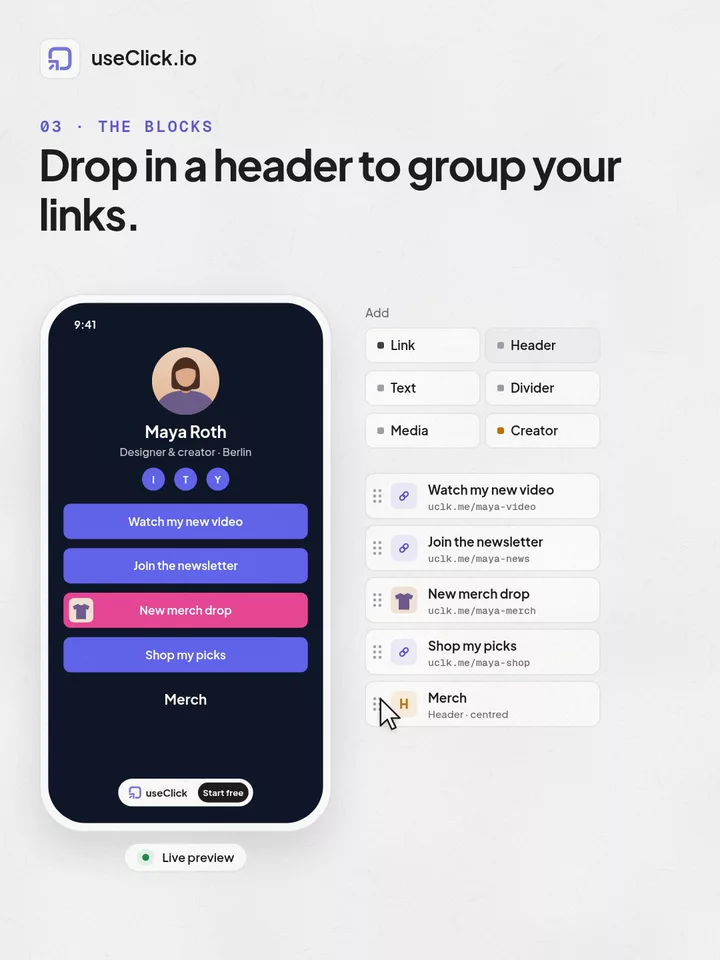
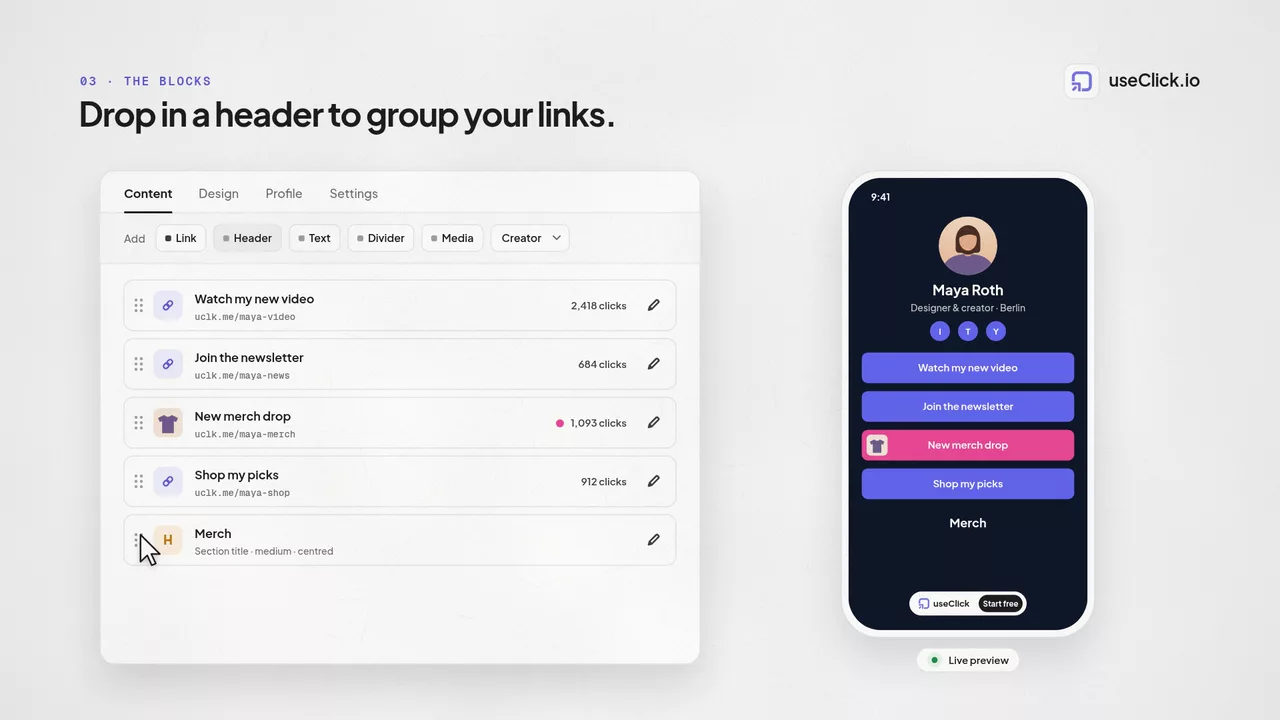
Short Link Management →Header, Text, Divider, and Embed blocks drop in anywhere among your links, so your UseClick bio page can group content into sections instead of one flat stack of buttons.
Most bio-link tools give you one thing: a vertical stack of buttons. UseClick gives you that too, but it also gives you four content blocks, Header, Text, Divider, and Embed, that drop into the exact same list as your links.
That means a bio page doesn't have to be one undifferentiated pile of buttons. Add a Header to label a group of links, a line of Text to explain what's below it, a Divider to separate sections, or an Embed to play a video or track right on the page, then reorder everything, blocks and links together, until the layout reads the way you want.
None of this requires a separate editor or template system. Blocks live in the same bio page builder as your links, use the same drag-and-drop reordering, and inherit the same theme, colors, and fonts as the rest of the page.
A bio page in UseClick isn't a links list plus a separate content area. It's a single ordered list that can hold any mix of links and content blocks, in whatever order you put them.
Every link and every content block lives in the same list. There's no separate "blocks" section to manage; position in that list is position on the page.
Because blocks and links share one list, a block can go at the very top, right before a single link, between two groups of links, or at the bottom, wherever the layout calls for it.
Grab any link or block and drag it to a new position. Blocks reorder exactly the way links do, because they're part of the same list.
Prefer not to drag? Up and down arrow buttons move any link or block one position at a time, useful for fine adjustments or on touch devices where dragging is fiddly.
Each block type does one job. Combine them to turn a flat list of links into a page with actual structure.
The gap between a link-in-bio page and a real landing page usually comes down to structure. Content blocks close that gap.
Every link looks the same, in the same order, with no way to tell a visitor why one group of links matters more than another or what they're about to click into.
Headers label sections, Text adds context, Dividers mark boundaries, and Embeds bring media onto the page itself, so the same set of links reads like an organized page instead of an undifferentiated pile.
Four blocks, combined a few different ways.
A Header above each cluster of links, "Music", "Merch", "Press", turns one long list into scannable sections.
A Text block above a link can spell out what it leads to or when it updates, so visitors know what they're tapping before they tap it.
Drop an Embed block right where a link would normally sit, and a YouTube video or Spotify track plays inline instead of opening in a new tab.
A Divider, labeled or plain, marks the line between one section of links and the next, for example between "Latest" and "Archive".
Adding a content block takes the same steps as adding a link, no separate workflow to learn.
Insert a Header, Text, Divider, or Embed block at any position in your link list, directly from the bio page editor.
Set size and alignment on Header and Text blocks, add an optional label to a Divider, or just paste a link into an Embed block and let it auto-detect.
Drag the block into place among your links, or use the up and down arrow buttons, the same controls you use to reorder links.
Changes save as you go. Your public bio page updates immediately, no separate publish step.
Content blocks are one piece of the link-in-bio builder, not a separate tool. Everything else about a bio page, theming, per-link controls, and analytics, works the same whether a page is a plain list of links or built out with blocks.
Blocks inherit the same one-click themes, colors, fonts, and button styles as the rest of your bio page, no separate styling to manage.
Blocks live on the same bio page you can assign a branded domain to, so a structured page and a custom domain aren't a trade-off.
Every link in the list, blocks or no blocks, is still a real UseClick short link with its own click count and full analytics.
Content blocks are part of the full link-in-bio builder, see how themes, per-link controls, and multiple pages work together. Put your finished page on a custom domain instead of the default uclick.bio address, or turn its URL into a scannable QR code for print materials.
Content blocks are Header, Text, Divider, and Embed, four page elements you can drop in anywhere among your links so a bio page reads as a structured mini-page instead of a flat stack of buttons.
A Header block is a short section title, meant to label the links underneath it. A Text block is a paragraph, meant for a longer note or explanation. Both support small, medium, or large size and left, center, or right alignment.
A Divider draws a visual break between sections of your page. Leave it blank for a plain line, or add a short label, like a category name, that appears on it.
Paste a YouTube, Spotify, SoundCloud, or Apple Music link into an Embed block and UseClick auto-detects the service and renders it inline as a playable or viewable embed, not just a clickable link out.
Blocks and links share one ordered list, so a block can go anywhere in your layout, above your links, below them, or split between two groups of links.
Drag and drop any block or link to a new position, or use the up and down arrow buttons if you'd rather not drag. Both methods move blocks and links through the same shared list.
No. Header, Text, Divider, and Embed blocks are structure and content, not links, so they don't carry their own click count. Only the actual links on your page generate clicks and report into that link's analytics.
A shortener, a bio tool and an analytics script each see one piece of the story. useClick connects all three, so every visit comes with where it started and where it ended.
Create branded short links and track every click.
Short Link Management →One page for all your links, with per-link analytics built in.
Link in Bio →Cookie-free traffic, regions, and top pages, no consent banner.
Website Analytics →UseClick.io makes link management effortless. Create branded short links that are clean, memorable, and built to strengthen your brand identity.