
Short Link Management
Create branded short links and track every click.
Short Link Management →Every button on your bio page is a real UseClick short link. Its click count opens straight into that link's own full analytics, country, device, referrer, and traffic patterns, with nothing simplified for being on a bio page.
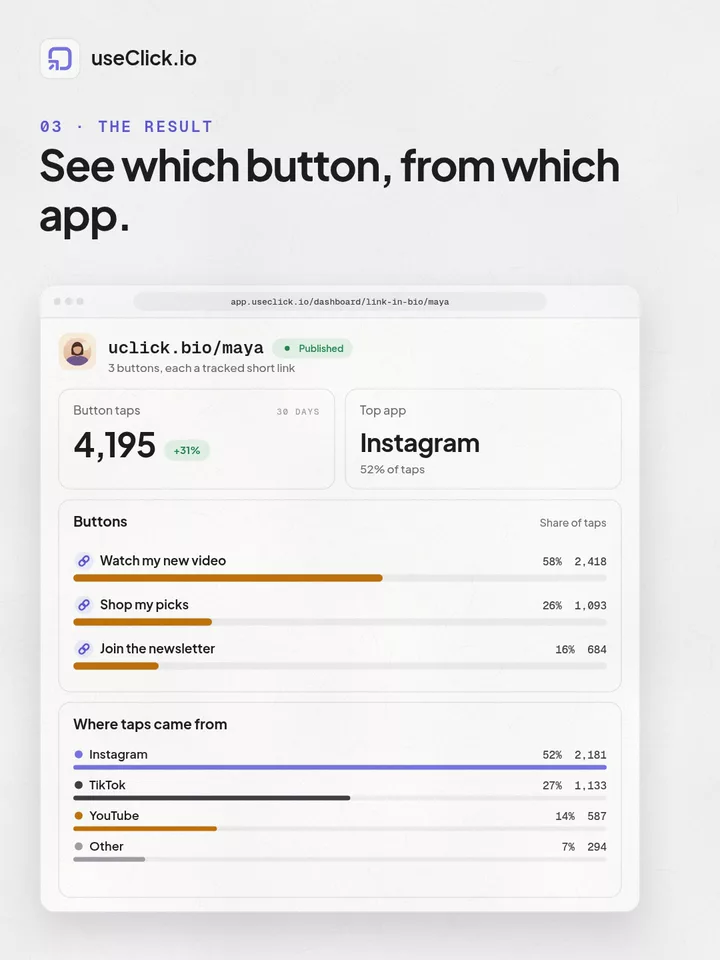
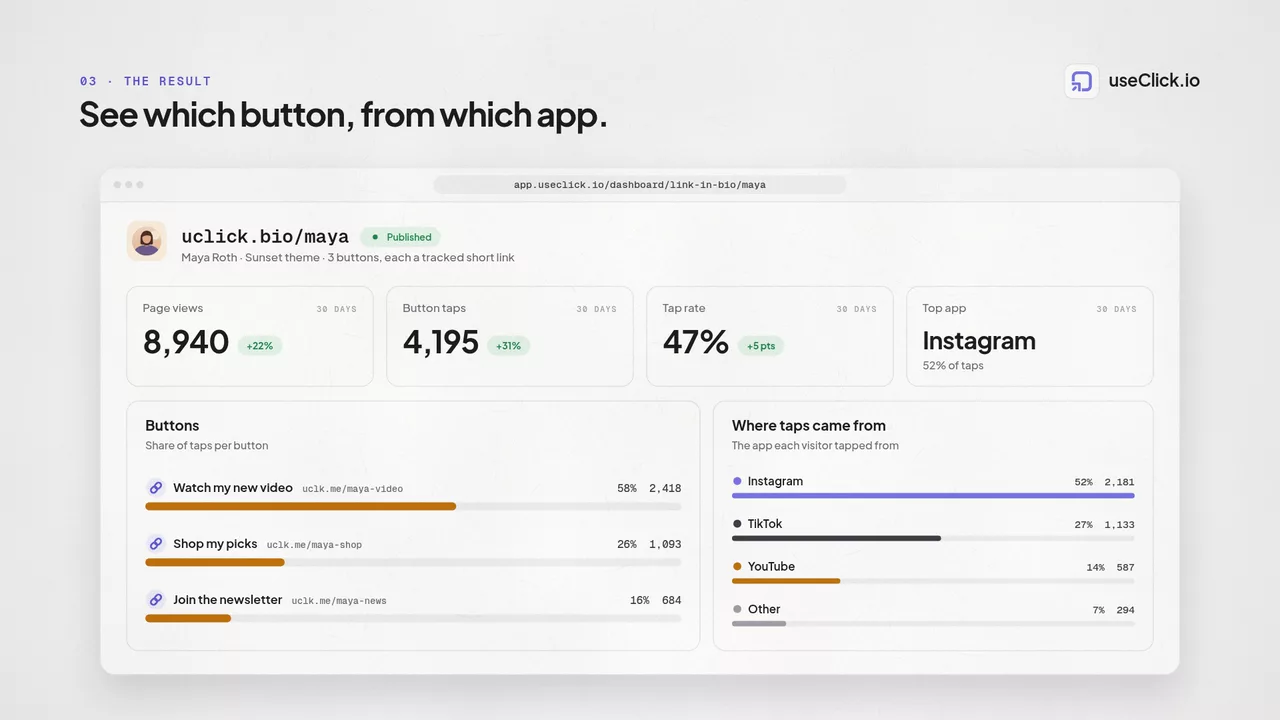
The click count next to each button on your bio page isn't a summary number pulled from somewhere else. Every link block you add to a bio page is created as a real UseClick short link the moment you add it, so it's tracked exactly the way any other short link in your account is tracked.
That means the click count you see in the bio editor is a doorway, not a dead end. Click it and you land on that specific link's own analytics page, the same page you'd reach from your Links dashboard, with the full depth documented across the Website Analytics feature pages.
This page covers how that connection works, what you'll find once you're on a link's analytics page, and how bio-link analytics fits alongside the page-level stats on your bio pages list.
Three steps, no extra setup, from adding a link to reading its full analytics.
Every button you add to a bio page, whether it points to a video, a product, or a newsletter signup, is created as a standard UseClick short link behind the scenes.
Because it's a real short link, every click is recorded the same way as any link you'd create directly from your dashboard. There's no separate bio-tracking system to enable.
The live click count shown next to each link in the bio editor is a link. Click it and you're on that link's own analytics page.
A bio link's analytics page isn't a cut-down bio-specific view. It's the exact same link analytics engine documented across the Website Analytics pages, applied individually to each button on your bio page.
Country, region, and city breakdown for everyone who clicked that specific link.
See how it worksBrowser, OS, and device type for that link's clicks.
See how it worksWhich referrers, and which platforms, sent people to that button.
See how it worksHow clicks on that link trend over time, by hour, day, or week.
See how it worksFor the full breakdown of what each of these views shows, see Website Traffic Overview, the same dashboard your bio links report into.
A lot of link-in-bio tools track clicks with a lighter, bio-specific system that shows less than their main analytics product. UseClick doesn't split its analytics that way.
Your bio page reports at two levels, and they answer different questions.
A few scenarios where knowing which button, and where its clicks came from, changes what you do next.
See which button on your bio page is actually driving clicks by opening each link's analytics side by side.
A link's referrer data shows whether a spike in clicks came from Instagram, TikTok, or somewhere else.
A link's country and region breakdown shows where the people clicking that specific button are located.
Device and OS data for a link shows whether your audience is clicking from mobile or desktop, useful when deciding what a button should point to.
Traffic patterns for a link show when clicks happen, which hours or days, so you know when your audience is actually active.
If one bio-page button points to a specific offer, its analytics page shows that button's performance on its own, separate from the rest of the page.
Bio Page Analytics sits at the intersection of two parts of UseClick: the pages you build and the engine that tracks every link in your account.
For building the bio page itself, profile, theme, and link blocks, see Link in Bio.
For the full analytics engine that every bio link reports into, see Website Analytics.
Since bio-page links are ordinary short links, they can be organized into a campaign like any other link, see Campaigns for how campaign-level reporting works.
The same goes for UTM parameters: add them to a bio-page link exactly as you would any short link, see UTM Builder.
The path from a button on your bio page to its complete analytics.
Drop a link block onto your bio page. It's created as a real short link instantly.
Every click on that button is recorded automatically, no setup required.
Click the live click count in the bio editor to open that link's analytics page.
Review geography, device, referrer, and traffic patterns for that one button.
No. Every button on a UseClick bio page is a real short link under the hood, so its click count links straight to that specific link's own full analytics page, with the same country, device, browser, and referrer breakdown as any other UseClick short link, not a stripped-down bio-specific dashboard.
Open your bio page in the editor. Each link block shows its own live click count next to it, so you can compare buttons at a glance before deciding which one to dig into.
You land on that specific short link's own analytics page, the same page you'd reach from your Links dashboard for any other short link, with geography, audience, sources, and traffic-pattern data for that one link.
The same as any UseClick short link: country, region, and city breakdown, browser, OS, and device type, referrer sources, and traffic patterns over time. It's the full link analytics engine documented across the Website Analytics pages, applied once per link on your bio page.
Both. Your bio page has its own page-level stats, total views and link-through rate, covered on the link-in-bio overview. Bio Page Analytics is the per-link depth underneath that: full analytics for each individual button.
No. Because every link block is created as a real UseClick short link automatically, it's tracked from the moment you add it. There's no separate script, toggle, or integration to enable.
Yes. Bio-link clicks don't run through a separate tracking system, so they follow the same privacy-first analytics approach as every other UseClick link.
A shortener, a bio tool and an analytics script each see one piece of the story. useClick connects all three, so every visit comes with where it started and where it ended.
Create branded short links and track every click.
Short Link Management →One page for all your links, with per-link analytics built in.
Link in Bio →Cookie-free traffic, regions, and top pages, no consent banner.
Website Analytics →UseClick.io makes link management effortless. Create branded short links that are clean, memorable, and built to strengthen your brand identity.