
Short Link Management
Create branded short links and track every click.
Short Link Management →Group your links into color-coded campaigns so you can filter, review, and export them together. Available on Starter, Growth, Pro, and Business plans.
Campaign management helps you keep related links together as you run initiatives across different channels. UseClick lets you create a color-coded campaign right from the link creation flow, then filter your entire links list down to just that campaign.
Campaigns are a paid-plan feature (Starter and above). Combine them with folders, the UTM builder, and CSV export to keep your link library organized and easy to report on.
Access all your campaigns through UseClick's intuitive dashboard with straightforward organization and filtering tools:

Give each acquisition channel its own color-coded campaign, then filter your links list down to just that channel to see which one is driving the most clicks.
For affiliate marketers, consider pairing campaigns with Custom Domains for professional, branded links.
Keep links from different clients or products in separate color-coded campaigns, then use the campaign filter to review just one at a time.
Uploading dozens of links for a single push? Assign them all to one campaign directly in the bulk upload flow instead of tagging each link by hand.
Learn more about Bulk Upload.
Maintain clear and consistent campaign structure:
For tracking the performance of your campaigns, explore our analytics features to gain insights into campaign effectiveness. Explore Analytics
Monitor and optimize campaign performance:
Enhance your campaign tracking with UTM parameters for more detailed attribution data. Explore the UTM Builder
Keep your campaign list clean and easy to navigate as it grows:
A structured flow for planning, launching, and improving link campaigns at scale.
Organize links into clear campaign groups for cleaner management and reporting.
Use clear naming conventions and consistent colors so campaigns stay easy to search and tell apart.
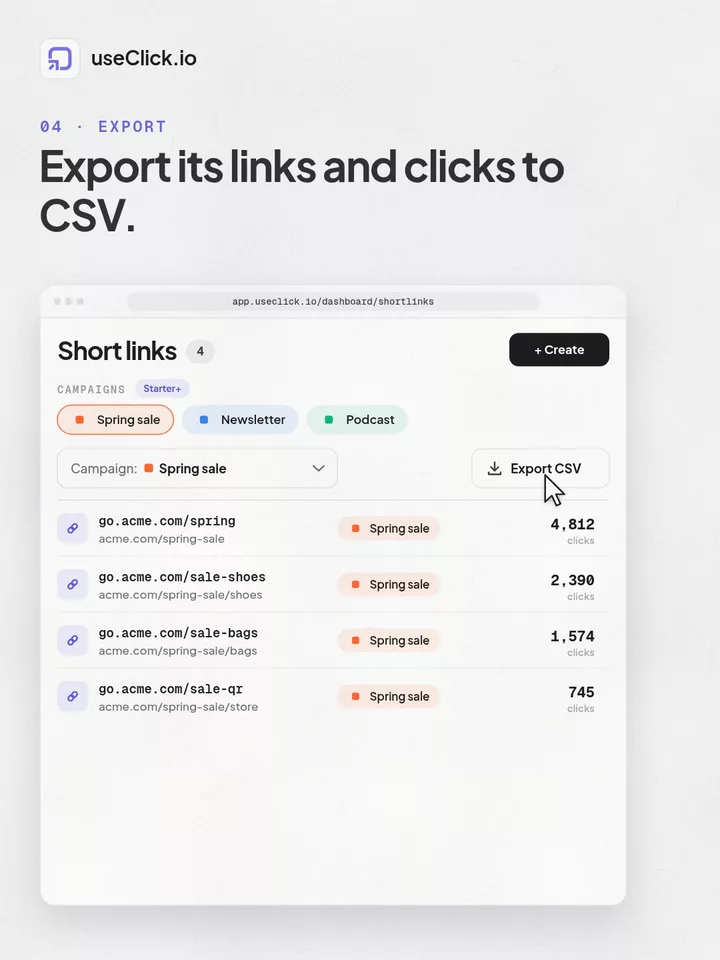
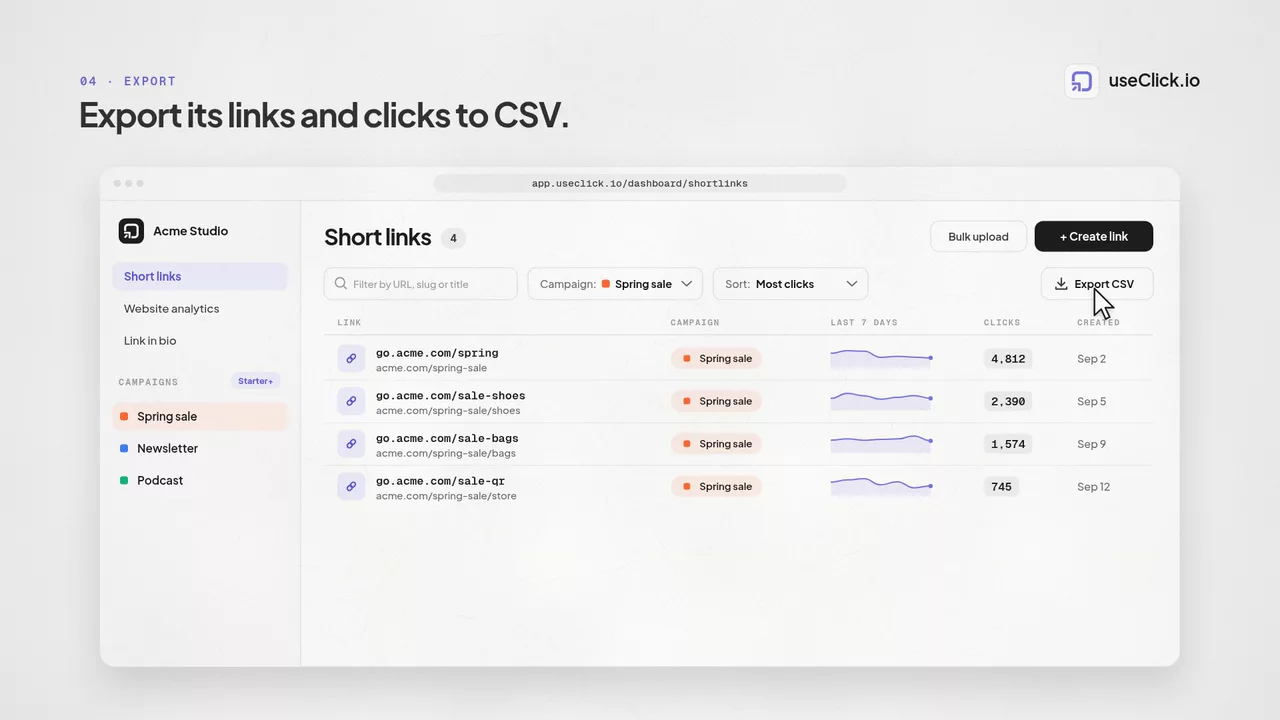
Filter to a campaign to review click and visitor counts for its links, then export to CSV for deeper analysis.
Reassign a link to a different campaign anytime, its click history stays intact.
Assign links to a color-coded campaign, then filter your links list by that campaign to see click and visitor counts for every link in it, and export the filtered view to CSV for deeper analysis.
UseClick.io's color-coded campaigns keep links consistently named and grouped, with filtering, folders, and CSV export to keep reporting simple. Campaigns are available on Starter, Growth, Pro, and Business plans.
A shortener, a bio tool and an analytics script each see one piece of the story. useClick connects all three, so every visit comes with where it started and where it ended.
Create branded short links and track every click.
Short Link Management →One page for all your links, with per-link analytics built in.
Link in Bio →Cookie-free traffic, regions, and top pages, no consent banner.
Website Analytics →UseClick.io makes link management effortless. Create branded short links that are clean, memorable, and built to strengthen your brand identity.