
Short Link Management
Create branded short links and track every click.
Short Link Management →Click any row in a breakdown card, a country, browser, device, or page path, and UseClick filters your entire analytics view around it. Every chart, table, and stat updates together, instantly, without a new query or a page reload.
Most analytics tools treat each chart as its own island: you can sort or search inside a table, but the country breakdown, the device chart, and the traffic-pattern heatmap next to it never know about each other. UseClick works differently. Click any row anywhere in the dashboard and that value becomes a filter applied to the whole page at once.
The click-to-filter mechanism itself is identical wherever it appears: click a row, and it becomes a server-side filter that narrows every chart, table, and stat on the page at once. What differs slightly is which dimensions are on offer. On an individual short link's analytics page, every breakdown is clickable: country, region, city, browser, OS, device, language, and bot category. On the whole-site Website Analytics dashboard, the same geography and technology breakdowns are clickable, plus page path since that view spans your entire site; the bot traffic card there is a read-only breakdown for now.
This page covers exactly how the filtering works, which dimensions you can filter by, and how to read the result once several filters are stacked on top of each other.
Filtering isn't a client-side search box hiding rows you already loaded. Each click sends the value to the server and re-runs every aggregate query on the page with that value applied, so what you see is a freshly computed slice of your data, not a filtered view of a cached one.
Click a country in the geography card, a browser in the technology card, a page path in the content table on Website Analytics, or a bot name in the bot traffic card on an individual link's page. Any clickable breakdown row works the same way.
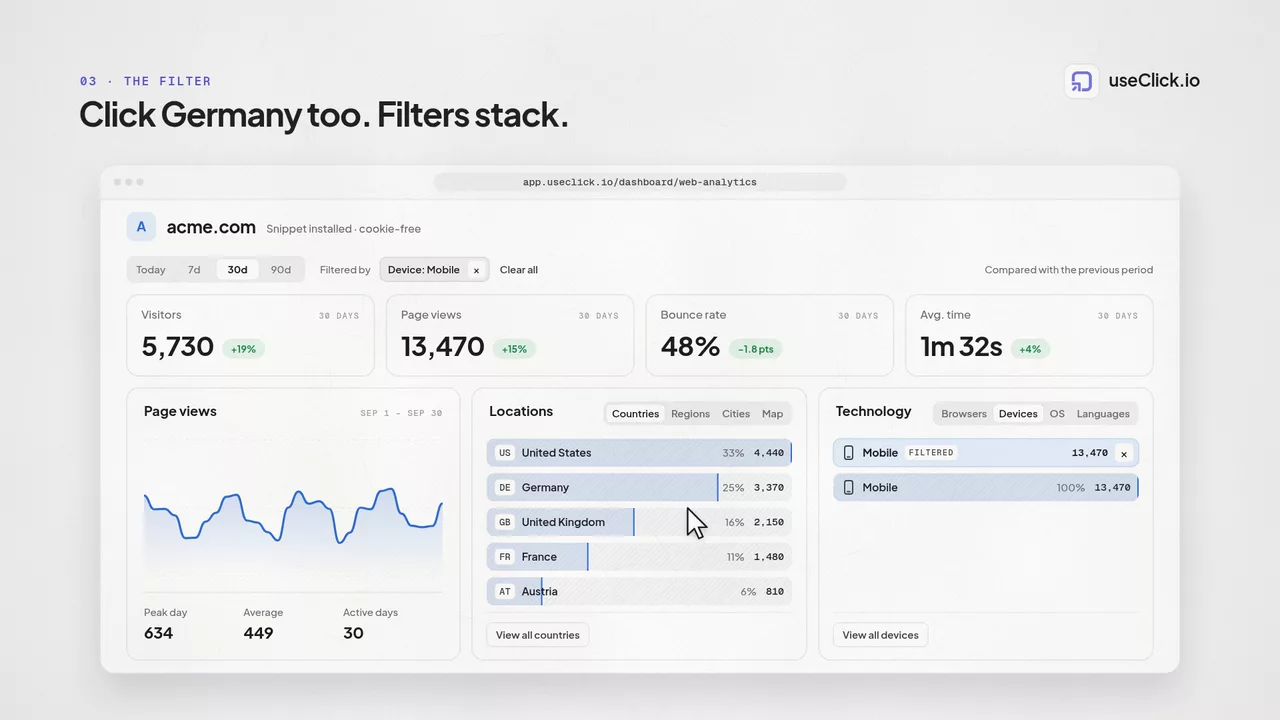
That value is added as a server-side filter, and every chart, table, and stat on the page, not just the card you clicked in, recalculates against it. The traffic-pattern heatmap, the referrer breakdown, the device split, the visitor counts: all of it reflects the filtered slice at once.
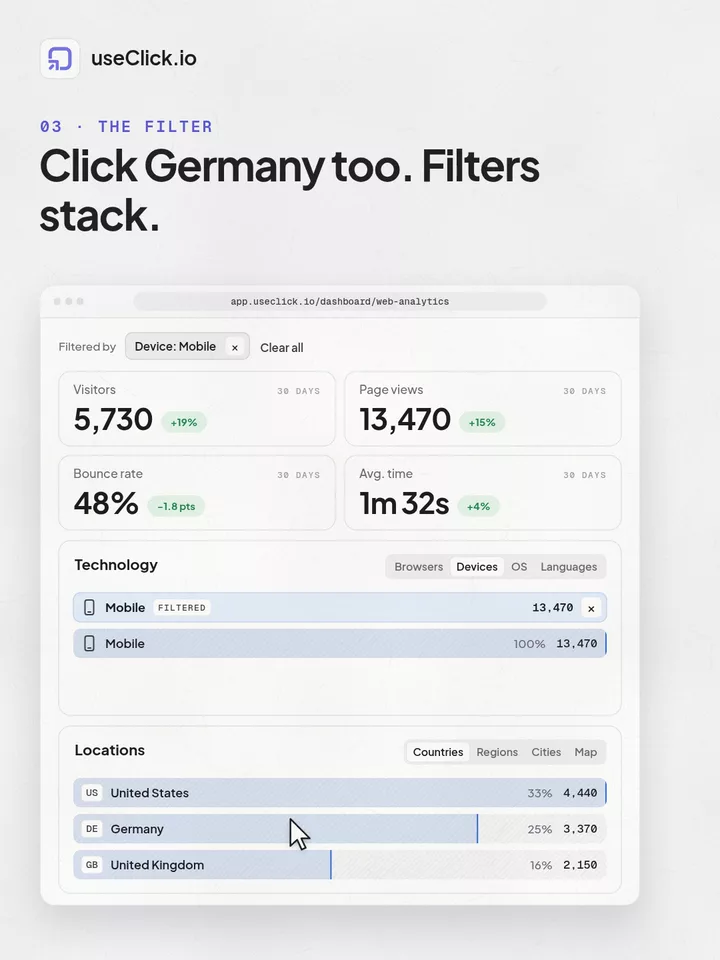
Click a row in a different card and it adds alongside the first, for example a country and a device, narrowing the view further without losing the filter you already set.
Filtering works on any breakdown UseClick already shows you. There's nothing extra to configure: if a card displays it as a row, you can click it.
Country, region, and city. Click any location breakdown to narrow the whole dashboard to visitors from that place.
Browser, operating system, device type, and language. Isolate traffic from a specific browser, OS, device category, or visitor language.
On the Website Analytics dashboard, click a page path in the content table to see how the rest of your metrics look for visitors of that specific page.
On an individual short link's analytics page, click a bot name in the bot traffic card to isolate a specific crawler or bot category and see its traffic pattern separately from human visitors. On the whole-site Website Analytics dashboard, the bot traffic card is a read-only breakdown rather than a clickable filter.
Every active filter renders as a chip near the top of the dashboard, so it's always clear exactly what slice of data you're looking at. There's no hidden filter state to lose track of.
Each click adds its own chip. Filter by country, then by device, then by browser, and all three narrow the dashboard together.
A single "Clear All" action removes every active filter at once and returns every chart, table, and stat to the full, unfiltered view.
Say you click "Germany" in the geography card of your Website Analytics dashboard. Without navigating away or rebuilding a single query:
A lot of analytics tools let you filter one chart at a time. UseClick filters the whole page, because a question about one segment of your traffic is rarely a question about just one metric.
You don't rebuild a filter for the geography card, then a separate one for the device chart, then another for the referrer table. One click sets it for all of them.
There's no separate "filtered view" or export step to see the result. The same dashboard you were already reading updates in place.
Because every card updates together, you see how a segment behaves across geography, technology, content, and traffic quality at the same time, not one dimension in isolation.
Click-to-filter works the same way in both places UseClick shows you analytics, though the exact set of clickable dimensions differs slightly between the two.
On an individual short link's analytics page, part of Link Analytics, click a country, region, city, browser, OS, device, language, or bot to filter that one link's data.
Across your whole site in Website Analytics, the same click-to-filter interaction covers the same geography and technology dimensions, plus page path since a whole-site dashboard spans multiple pages. The bot traffic card here is read-only rather than clickable.
Four moves cover the entire pattern, on either analytics dashboard.
Pick any breakdown value the dashboard makes clickable: a country, browser, or device everywhere, plus page path on Website Analytics or bot category on an individual link's page.
Every chart, table, and stat on the page recalculates for that filter at once.
Click another row in a different card to narrow further without losing the first filter.
One action removes every active filter and returns to the full view.
Any breakdown row already shown on the dashboard you're viewing: country, region, city, browser, operating system, device type, and language are clickable on both analytics dashboards, plus page path on the whole-site Website Analytics dashboard or bot category on an individual link's analytics page. There's nothing separate to configure. If a card displays it as a clickable row, clicking it filters by it.
No. The filter is applied server-side across the entire dashboard, not just the card you clicked. Every chart, table, and stat on the page recalculates against the same filtered slice of data at once.
Yes. Each click adds its own removable chip, so you can stack filters across dimensions, for example a country and a device, to narrow in on a specific segment.
Every active filter shows as a chip near the top of the dashboard. Remove a single filter by clicking its chip, or use the "Clear All" action to reset every active filter at once and return to the unfiltered view.
Both, but the exact set of clickable dimensions differs slightly. On an individual short link's analytics page you can filter by country, region, city, browser, OS, device, language, and bot category. On the whole-site Website Analytics dashboard the same geography and technology dimensions are clickable, plus page path. The bot traffic card there is a read-only breakdown rather than a filter.
Page path filtering lives on the Website Analytics dashboard because that view spans every page on your site, while an individual short link redirects to one destination, so there's no set of pages to filter by there. Bot filtering currently runs the other way: it's available on individual link pages, while the bot traffic card on the whole-site Website Analytics dashboard is a read-only breakdown for now.
No. Filtering only changes what you see in analytics, it doesn't change visitor behavior. To route visitors to different destination URLs based on their country, use geo-targeting instead.
A shortener, a bio tool and an analytics script each see one piece of the story. useClick connects all three, so every visit comes with where it started and where it ended.
Create branded short links and track every click.
Short Link Management →One page for all your links, with per-link analytics built in.
Link in Bio →Cookie-free traffic, regions, and top pages, no consent banner.
Website Analytics →UseClick.io makes link management effortless. Create branded short links that are clean, memorable, and built to strengthen your brand identity.