
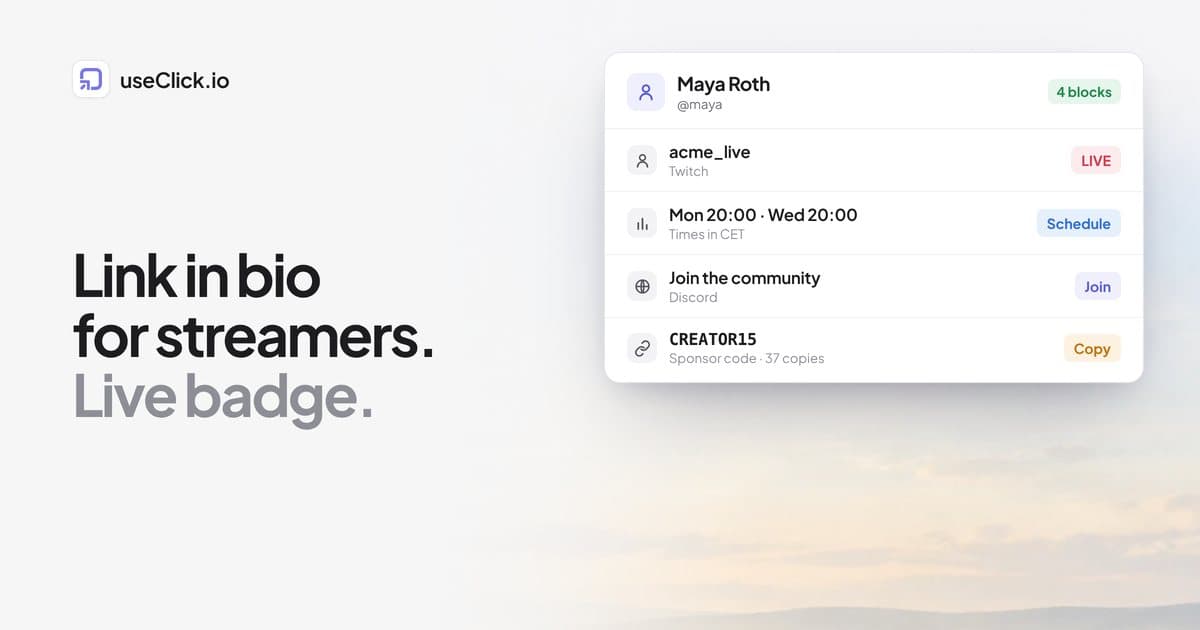
Quick answer: A creator's link in bio should do more than list buttons. It should show whether you are live, when you stream next, where your community lives and which sponsor code to use. On useClick these are ready-made "creator blocks": a live badge (Twitch, Kick, YouTube), a stream schedule, a Discord invite, a sponsor promo code that counts copies, and your latest YouTube video. Most are on every plan; promo codes need Starter and automatic live detection and the latest-video block need Growth.
Key Takeaways
- Visitors from a stream, a clip or a video want one of four things: watch live, know when you are next on, join the community or get the sponsor code.
- Live badge, stream schedule and Discord invite are on every plan, including Free.
- Promo codes (Starter) count every copy, which is the number a sponsor asks for.
- Automatic live detection (Growth) works for Twitch and Kick. On YouTube you switch the badge by hand.
What a creator's bio page is actually for
A creator's audience arrives from places where a normal link is awkward: a stream panel, a clip on social media, a video description, a Discord server, an Instagram or TikTok profile (where each platform allows a link). One link has to serve all of them, and the people clicking want different things at different moments. Someone who finds you while you are live wants the stream. Someone who finds you the next day wants the schedule and your latest upload. A subscriber wants the community and the sponsor code.
A plain list of buttons handles none of that well, and it goes stale. The page stops being useful the first time you forget to update it. Creator blocks are designed around that problem: some of them update themselves.
The five blocks, and what each plan includes
| Block | What visitors see | Plan |
|---|---|---|
| Live badge | Your channel with a red LIVE or grey Offline badge | All plans (switched by hand). Automatic detection: Growth and up |
| Stream schedule | Your weekly streams or release days | All plans |
| Discord invite | A card with a Join button for your server | All plans |
| Promo code | A sponsor code with a Copy button | Starter and up |
| Latest YouTube video | Your newest upload, updated automatically | Growth and up |
All of them follow your page's colours and button shape, and you can reorder, hide and delete them like any other block. They are described in full in the creator blocks guide.
Setting up each block
To add one, open the bio page editor, go to the Content tab, click Creator in the Add row and pick a block. The Streamer, YouTuber, Creator and Shop templates add some of them for you, so starting from a template is the fastest route (link in bio setup).
Live badge
Choose the platform (Twitch, Kick or YouTube), enter your channel name or paste the channel URL, and optionally change the headline (the default is "Live now: come say hi"). Then either switch I'm live now on and off yourself, or turn on Detect automatically.
With automatic detection, useClick asks Twitch or Kick whether your channel is live when someone opens your page, and reuses the answer for about a minute, so the badge follows your stream within a minute or so. Two honest limits:
- Automatic detection works for Twitch and Kick. For YouTube you use the I'm live now switch.
- Kick has no official API and sometimes blocks these checks. When a check fails, the block falls back to your manual switch, so keep that switch set sensibly.
If you drop below Growth, the badge keeps working with the manual switch.
Stream schedule
Set a title and a time zone such as CET or EST, then add up to seven slots: a day (Monday to Sunday, or Daily), a time and optionally what it is, for example "Mon 20:00 Ranked". Visitors see the slots in the order you entered them with a line like "Times in CET".
Always fill in the time zone. Times are shown exactly as you type them and are not converted to the visitor's time zone. A schedule with no slots shows "No streams scheduled yet", so hide the block with its eye button during a break instead of leaving it empty.
Discord invite
Enter the server name visitors should see and paste your invite link. One practical tip from the guide: use an invite that never expires. In Discord, open Invite people, click Edit invite link and set Expire after to Never. An expired invite leaves a Join button that leads to "Invite invalid", which is the most common support question about this block.
Sponsor promo code
Enter the code (for example CREATOR15) and the brand, and optionally a shop link and a note such as "15% off your first order". Visitors get a Copy button, and a Shop button if you added a link. Every tap on Copy adds one to the count, shown in the block's row ("37 copies") so you can tell a sponsor what your audience actually did.
Be precise about what that number means. It counts taps on Copy, including repeat copies by the same visitor, so it measures intent to use the code, not sales. The Shop button opens the address you entered directly and is not a short link, so its taps are not in your link analytics. If you want to measure them, add the shop as a normal link button as well.
Latest YouTube video
Add the block and paste your YouTube channel ID (it starts with UC and is 24 characters long). You find it in YouTube Studio under Settings, Channel, Advanced settings. Your @handle does not work here. useClick reads your channel's public video feed and refreshes about every 30 minutes, so a new upload appears within about half an hour. Until a video is found, the block stays off your public page.
A layout that works
Order matters more than the number of blocks. A simple structure for a streamer:
- Live badge at the top, so someone arriving mid-stream sees it first.
- Latest video or a featured clip, for people arriving when you are offline.
- Your main links: channel, socials, shop.
- Schedule, so a first-time visitor knows when to come back.
- Discord and the promo code lower down, for people who have already decided they like you.
You can use link scheduling and spotlight to make one button stand out for a launch or to show it only for a set time (scheduling and spotlight).
What you can measure
A bio page that you cannot measure is a guess. The bio analytics show views, visitors and button taps, so you can see which buttons your audience uses and which they ignore. That is the same logic as in how a link in bio with analytics shows what is working.
Creator blocks are not short links, so they do not count toward your link limit and do not appear in link analytics. Promo code copies are counted in the block itself. If a particular destination matters, such as a merch store, make it a normal link button as well so its clicks show up in the stats.
Owning the page
If your income depends on one link, it is worth controlling where it lives. Today the bio page itself is served at uclick.bio/yourname, not on your own domain. What you can own is the short links you share: a link such as go.yourbrand.com/clip stays yours if you change tools, and you can point it at your bio page. Every plan includes custom domains for short links, and the setup guide takes about ten minutes. The reasoning is covered in why you should own your bio link.
Frequently asked questions
Does the live badge work for YouTube?
The block supports YouTube, but automatic detection does not. For YouTube you turn I'm live now on and off yourself. Twitch and Kick can be detected automatically on Growth and up.
Why does my badge say Offline while I am streaming?
With automatic detection, check the platform and channel name, then wait a minute and reload. On YouTube, or when Kick blocks the check, switch I'm live now on.
Can I add more than one live badge?
Yes. You can add the same block more than once, for example one badge for Twitch and one for Kick.
How are promo code copies counted?
Each tap on Copy adds one, including repeat copies by the same visitor. The count appears in the block's row on the Content tab.
What happens to my promo code if I downgrade?
Existing promo code blocks stay on your page and keep counting. You just cannot add new ones below Starter.
Does the schedule convert times to my visitors' time zones?
No. Times are shown as you type them, so always include your time zone.
Is the Free plan enough?
For a live badge (manual), a schedule and a Discord card, yes. Promo codes need Starter, and automatic live detection and the latest-video block need Growth. Free pages show a small useClick badge. See plans.
The decision in one paragraph
A good creator page answers four questions fast: are you live, when are you next on, where is the community and what is the code. Start from a creator template, switch on the live badge, add your schedule and Discord invite, and add the promo code when a sponsor asks for numbers. Everything except the code and the automatic features works on the free plan, so you can build the page before you decide on a plan.