
Quick answer: A standard analytics script cannot see most AI crawlers, because bots such as GPTBot, ClaudeBot and PerplexityBot read your HTML without running JavaScript. To see them you need your server to report bot visits. useClick labels each bot by company and purpose (answering a question now, AI search, AI training) and shows which pages it read. On WordPress this is a plugin setting. On Next.js or Cloudflare it is a short snippet.
Key Takeaways
- JavaScript trackers only see the few bots that behave like browsers. The rest are invisible to them.
- A bot's purpose matters more than its name: answering a person now, indexing for AI search and collecting training data are three different things.
- Detection is based on the user agent only. A bot that pretends to be a browser counts as a person.
- People who arrive from an AI assistant are not bots. They show up as a traffic source.
Why your analytics shows almost no AI traffic
The tracking script in most analytics tools runs in a browser. A crawler does not. GPTBot, ClaudeBot, PerplexityBot and ChatGPT-User fetch your page, read the HTML and leave, and the script never executes. So your report looks as if no AI system has ever visited, while your server logs show the opposite.
This matters because AI assistants increasingly decide which pages to quote and link. Knowing which of them read your content, how often and which pages they take is the first step in deciding whether to allow them, restrict them or write differently. If you have not yet checked what your site allows, start with how to check and fix AI crawler access and the AI crawlability checker.
Three different reasons a bot visits
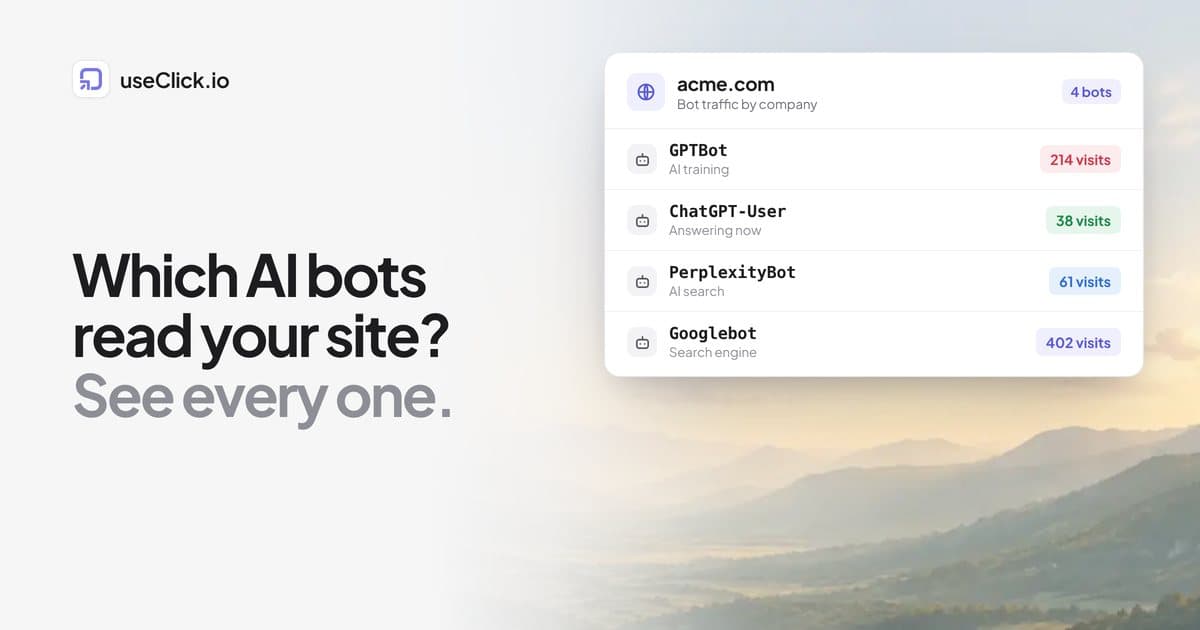
Grouping every AI bot together hides the useful part. useClick labels each bot by the company that runs it and by why it came:
| Purpose | What it means | Examples |
|---|---|---|
| Answering now | Someone asked an AI assistant a question and it opened your page to answer | ChatGPT-User, Claude-User, Perplexity-User |
| AI search | Indexed so assistants can find and cite your page | OAI-SearchBot, Claude-SearchBot, PerplexityBot |
| AI training | Collected to train or ground AI models | GPTBot, ClaudeBot, CCBot, Bytespider, Meta-ExternalAgent |
| Search engine | Crawled for a search index | Googlebot, Bingbot, Applebot, DuckDuckBot |
| Link preview | Fetched to build a preview when someone shared your link | Slackbot, WhatsApp, LinkedInBot, Twitterbot |
The first two are usually good news: a visit labelled "answering now" means an assistant used your page while responding to a person. Training crawls are the ones many site owners want to decide about on purpose.
How to see it in useClick
Bot traffic is recognised on every click and page view, on every plan, with no setup. For website analytics the main controls are:
- All traffic, People and Bots tabs next to the date range. They switch every number, chart and breakdown on the page.
- Bot traffic card, by company. OpenAI, Anthropic, Perplexity, Google and the others. Click a company to see its bots and what each came for, and which pages it read.
- Click a bot to filter the whole page to its visits.
- A split under the totals, for example "3,120 people · 520 bots", so you can read the share without leaving the overview.
Bot visits are never billed against your plan's monthly page views on a website. Journeys, funnels, goals and custom events count people only.
The part most guides skip: server-side reporting
Because the script cannot see non-browser bots, your server has to tell useClick about them. Pick the route that matches your stack:
- WordPress: the useClick plugin, version 1.4 or newer. Turn on AI and search bots under Website analytics (it is on by default). See the WordPress plugin guide.
- Next.js or Vercel: a short
middleware.ts. Copy it from See AI crawlers too at the bottom of the site report. - Cloudflare: a Worker on your site's route, from the same card.
- Anything else: send a
POSTtohttps://useclick.io/api/analytics/server-hitwith your API key, the site ID, path, user agent, referrer and country. You can send up to 25 per request, and aGET /api/analytics/bot-signaturescall lists the user-agent words worth checking first, so ordinary visits never leave your server.
Only bot requests are recorded, because useClick checks the user agent again on its side. Reporting every request therefore never counts a person twice. No IP address is sent or stored. The full reference is in the bot traffic guide.
What you can and cannot trust
Be sceptical of any bot report, including this one.
- Detection uses the user agent only. A bot that pretends to be a normal browser is counted as a person, and a person using a tool such as
curlis counted as a bot. useClick does not verify requests against the IP ranges bot operators publish. - Spikes after you post a link are usually previews. Slack, WhatsApp, X and LinkedIn fetch a link to build the preview. Those show up as "Other bot" or link preview, not as AI.
- Few bots in the report usually means the script is the only source. Add server-side reporting before you conclude that nobody visits.
- Totals include bots by default. Switch to People when you want a human view.
Visits from AI assistants are not bot traffic
Someone who clicks a link inside ChatGPT, Claude, Perplexity, Gemini or Copilot is a person. useClick shows those visits in Traffic sources under the AI assistants channel, not in the bot card. That distinction is the one most useful for deciding whether AI visibility is bringing you readers: bots show who read you, the AI assistants channel shows who sent you visitors.
What to do with what you see
- Look at the "answering now" and AI search bots first. These are the ones tied to being quoted. Check which pages they read.
- Decide on training crawlers deliberately. If you do not want your content used for training, a
robots.txtrule is the usual route. The robots.txt tester shows what a given user agent is allowed to fetch. - Look at the pages bots read most. If assistants keep reading an outdated page, update it or redirect it.
- Watch for Unknown Bot. User agents that contain "bot", "crawler" or "spider" but are not on the list are labelled Unknown Bot. A growing share is worth a look in your server logs.
- Re-check monthly. The mix changes as new crawlers appear.
Frequently asked questions
Can Google Analytics show AI crawlers?
Not reliably. Script-based analytics only sees visitors that execute JavaScript, and most AI crawlers do not. Server-side reporting or your server logs are the dependable sources.
Does useClick block bots?
No. It reports them. Blocking is done in your robots.txt, your firewall or your CDN.
Do bot visits count toward my plan?
Not for websites: bot page views never use your monthly page view allowance. For short links, detected bot clicks are recorded like other clicks and count toward the monthly clicks figure and a link's click limit.
Which plan do I need?
Bot detection on link clicks works on every plan. Website analytics beyond the free trial need Starter or above. See plans.
Is any personal data stored?
No IP address is sent or stored for server-side reports, and the tracking script sets no cookies.
How do I tell a real GPTBot from a fake one?
useClick cannot. Detection is by user agent, and some scrapers copy well-known names. If it matters, compare against the IP ranges the operator publishes in your server logs.
Are link previews bad?
No. A preview fetch means someone shared your link. It is simply not a human visit, which is why it is separated.
The decision in one paragraph
If you want to know whether AI systems read your site, a JavaScript tracker will tell you almost nothing, because most crawlers never run it. Add server-side bot reporting, then read the results by purpose: who is answering a question now, who is indexing you for AI search and who is collecting training data. Treat the numbers as a strong hint rather than proof, since the user agent can be faked. The bot traffic guide has the setup for each platform.