
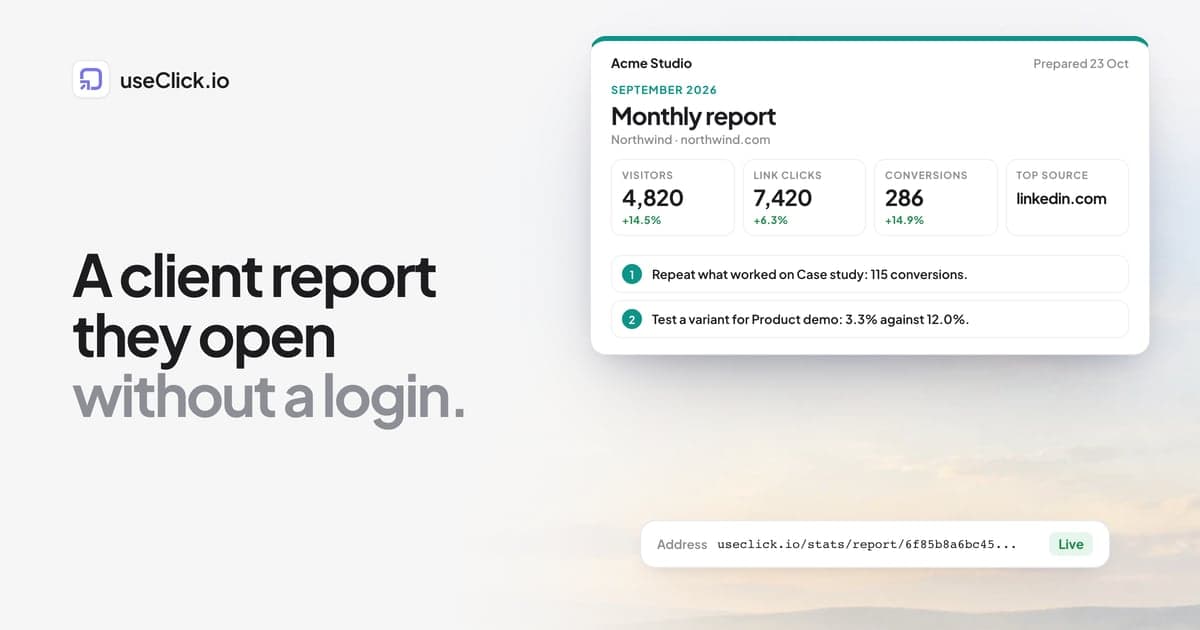
Quick answer: A client report in useClick is one read-only page for one client website. It carries your agency name, logo and colour, and shows a month of results: visitors, link clicks, conversions and the top source, each compared with the month before, plus three sentences about what changes next and a table that follows each tracked link from the click to the visit and the conversion. You send the client one address. They need no account. It is included from the Growth plan.
Key takeaways
- Clients want a link they can open on a phone and a sentence that says what to do next, not a dashboard login.
- The report uses the same numbers as your dashboard, people only, so there is nothing to copy into a template by hand.
- The three next steps are written by you, or drafted from the numbers by simple, predictable rules.
- The address is the key: turn it off, replace it or let it expire whenever you want.
- It needs goals for the conversions, and your short links need to point at the client's domain.
The problem it solves
Most agencies already send monthly reports. The work is in producing them: open the website analytics, open the link report, open the goals, copy numbers into a slide or a document, add a sentence of interpretation, export a PDF. Do that for ten clients and the first week of every month is gone.
The alternative has been to share a live stats page. useClick's public stats pages do that well for traffic, but they leave out goals, conversions and revenue, and they have no place for your branding or your advice. So agencies still paste the missing numbers into their own template.
A client report fills that gap. It puts the headline numbers, the conversions and your recommendation on one page, under your name, and the client reads it in a minute.
What the client sees
| Part | What it shows |
|---|---|
| Header | Your logo and agency name, the report title, the client's name, the period |
| Visitors | Estimated people per day, bots excluded, compared with the previous period |
| Link clicks | Clicks on your short links that point at the client's website, compared with the previous period |
| Conversions | Goal conversions recorded for the website, compared with the previous period |
| Top source | The site that sent the most people-only page views, or Direct |
| What changes next | Three sentences |
| Tracked links | Up to eight short links with clicks, visits through the link, conversions and conversion rate |
The page is plain on purpose. It prints cleanly, so "save as PDF" from the browser gives you a document if the client asks for one, and it reads well on a phone.
Why the link table matters
The table is the part that a stats page cannot give you. Each row is one short link, and it shows three different things side by side:
- Clicks: requests to the link.
- Visits: people who actually arrived on the client's site through that link.
- Conversions: goal events that followed from those visits.
A click is not a visit, and a visit is not a conversion. Clicks include repeat taps and some automated requests, and a visit only counts when the page loaded and the tracking script ran. The footer of the report says so, which saves you the question "why is the click number bigger than the visitor number?". If you want the long version of that answer, why link clicks and GA4 sessions differ explains it.
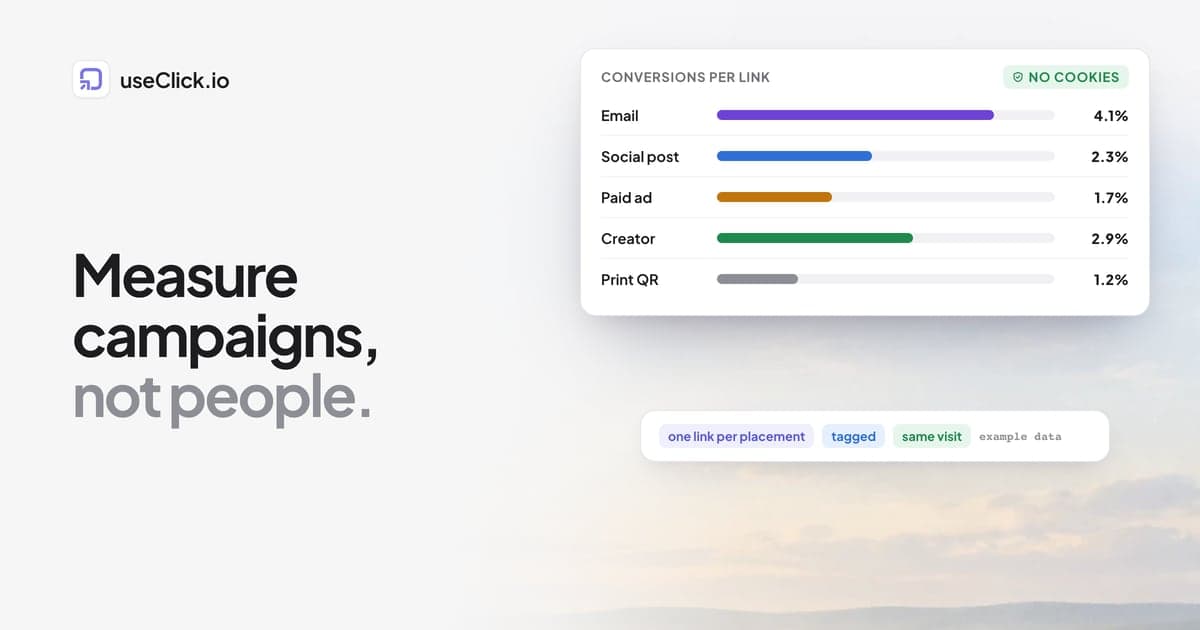
The connection between the click and the visit is a small token that the short link adds to the landing URL. The tracking script keeps it for the duration of that visit, and a conversion in the same visit is credited to the link. It uses no cookies, and it works within a visit, not across weeks. How to track which short link drove a sale shows the mechanism.
Three next steps, drafted or yours
A report that only lists numbers makes the client do the thinking. So the page ends with three sentences about what changes next. You can write them yourself, and you should when you know something the numbers do not.
If you leave them empty, the report drafts three from the data, using rules you can predict:
- Repeat what worked: the link with the most conversions.
- Test a variant: the link with the lowest conversion rate against the one with the highest, only among links with at least 30 visits.
- Check the redirect and page load: the link where clicks and visits are furthest apart, only among links with at least 30 clicks and a gap of 20% or more.
When there is too little data for a rule, a general step takes its place, such as adding a goal or creating one tracked link per channel. There is no model behind this, so the same numbers always give the same sentences. Treat them as a draft.
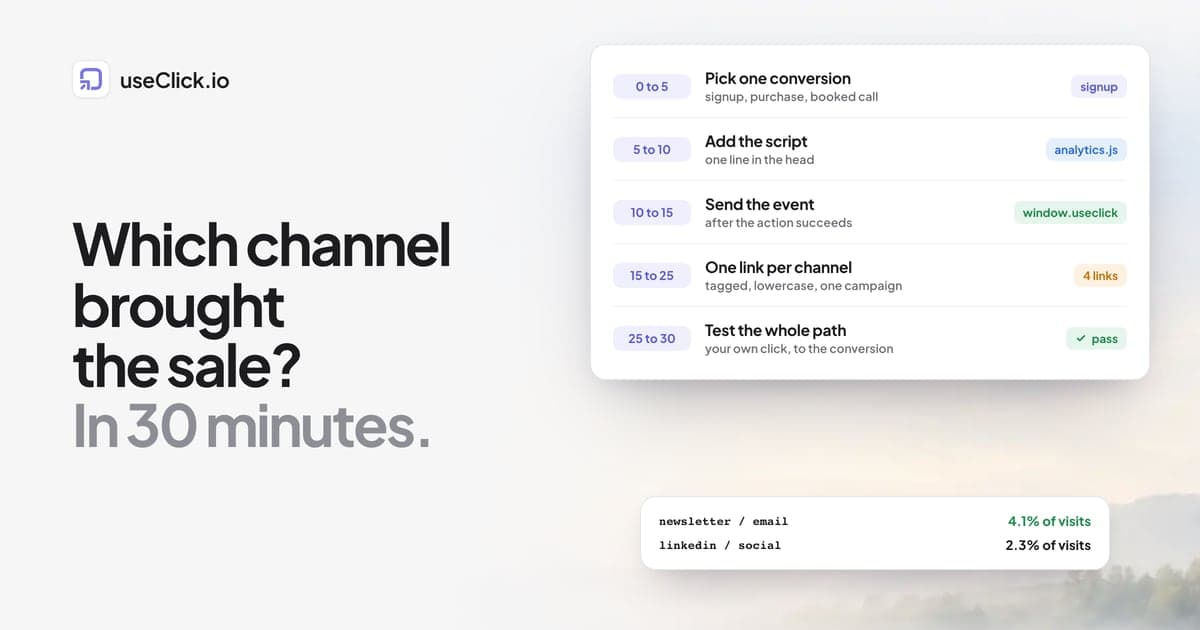
Set one up in five minutes
- Open the client's website in Website analytics and click Client report.
- Click New report and enter the title, the client's name and your agency name.
- Pick the period: the last full month, or the last 30 days.
- Add your logo address and an accent colour.
- Write your three sentences, or leave them empty for the draft.
- Create the report, copy the address and send it.
The address works every month. When the client opens it, the page shows the latest period, so you do not have to rebuild anything. The client reports guide has every field and every limit.
What makes the address safe to send
The address contains a random 32-character code, and that code is the only key. Anyone who has it can read the report, so it is for the client only. A few controls keep that in your hands:
- Turn off stops the address at once, and Turn on brings it back.
- New address replaces the code. The old address stops working, which is what you want when it went to the wrong person.
- An end day makes the address stop on its own.
- Delete removes the report.
A wrong, turned-off or expired address shows the same "not found" page, so it does not reveal which one it was. The page is read-only, shows nothing about your other websites or links, is not indexed by search engines, and contains no personal data. Visitors are counted without cookies or stored IP addresses, which cookieless website analytics explains in detail.
One detail to know: your logo is loaded from the address you give, by the client's browser, so host it somewhere you control.
What it does not do
Being specific about limits is part of a trustworthy report:
- It needs goals. Conversions come from your goals, which are on Growth and above. Without a goal the report still works, and says that no goal is set up.
- It matches links by domain. A short link appears in the table only if its destination is on the client's domain.
- It does not show revenue yet. Conversions are counted, and the value is not summed.
- It is not on your own domain. The page is hosted on useclick.io, with a small line saying the report was built with useClick. If you need a report on your own domain, export a CSV (Starter and above) into your own template.
- It does not prove causation. A conversion that arrived through a link is attributed to that link. It is not proof the link caused it. The monthly client report template covers how to word this for a client.
When a client report is the right tool
| You want to... | Use |
|---|---|
| Show live traffic to anyone, quickly | A public stats page |
| Send a monthly summary with your advice | A client report |
| Give a client the raw rows | CSV export |
| Give a client full access to explore | A team seat (Pro and Business) |
Many agencies use two: the public page for "how are we doing today?" and the client report for the monthly conversation.
Frequently asked questions
What is a client report in useClick?
It is a branded, read-only page for one client website. It shows a month of visitors, link clicks, conversions, the top source, three next steps and a table of tracked links, under your agency name and logo. The client opens it from one address and needs no account.
Which plan includes client reports?
Client reports are included from the Growth plan ($29 a month) and on Pro and Business. They use conversions from goals, which are also on Growth and above.
Can I put my own logo and colours on it?
Yes. You set your agency name, a logo address (a public https address) and an accent colour. The page itself is hosted on useClick, and a small line says it was built with useClick.
Does the client need an account?
No. Anyone with the address can read the report, so send it only to the client. You can turn it off, replace the address or set an end day at any time.
Are the numbers the same as in my dashboard?
Visitors come from the same analytics as your dashboard, people only. Link clicks, visits and conversions come from your short links, the tracking script and your goals, for the same period.
Can I write my own next steps?
Yes. Write up to three sentences. If you leave them empty, the report drafts three from the numbers with simple rules.
How many reports can I create?
Up to 10 per website, for example one per client contact or one per campaign period.
What happens if I downgrade?
The addresses stop working until you are back on Growth or above. You can still turn a report off on any plan.
The decision in one paragraph
A good client report answers three questions fast: what happened, what drove it, and what you will do next. Build it once per client website, add your name and a few sentences of advice, and send the address. The numbers update themselves, the client reads it on a phone, and you keep the first week of the month for work that is not copying numbers into a template.