
Quick answer: Give every call to action on your blog its own tracked short link, all pointing at the same signup page, and tag each with a different utm_content value. Then count signups with a goal on your thank-you page or a signup event. The short link tells you how many people clicked each CTA; the goal tells you how many of those clicks became signups. With the free useClick plugin you create the links and read the website numbers inside wp-admin.
Key takeaways
- Pageview counts on the signup page cannot tell you which CTA sent the visitor. A separate link per CTA can.
- Use one naming scheme for every CTA (
utm_content=sidebar,inline,footer) or the report turns into a puzzle.- Clicks per CTA work on every plan. Connecting each click to a signup needs a goal, which is on the Growth plan and above.
- Measure for at least a few weeks before you move or remove a CTA. A week of data on a small blog is mostly noise.
Why "signups from the blog" is the wrong number
Most blogs report one figure: signups whose first page was a blog post. That figure is useful for the content team's budget and useless for the person who decides where the button goes.
A typical post has three or four ways to reach the signup page:
- a button inside the article, after the section that solves the reader's problem
- a banner in the sidebar
- a box at the end of the post
- a link in the top navigation
All of them land on the same URL. Your analytics sees a visit to /signup with the blog as the referrer, and nothing else. If you want to know whether the sidebar banner earns its space, you need the click itself to carry a label.
There are two ways to label it. You can add JavaScript to every button and send an event on click, or you can give every CTA its own link. The second needs no code in your theme, works in any block, any page builder and any email, and keeps working when someone rebuilds the template next year. That is the setup below.
The setup in four steps
1. Connect the plugin
Install the free useClick plugin from the WordPress plugin directory and click Connect with useClick.io on its Settings screen. Sign in or create a free account, confirm, and you land back in wp-admin with the plugin connected. The plugin guide shows each screen.
While you are there, open Website analytics, pick or create the website for this blog and switch tracking on. The plugin adds the cookie-free tracker to every public page. On the Free plan this is a 14-day trial for one website; Starter and above have no time limit.
2. Create one link per CTA
Open useClick > Create short link and create a link for each call to action. Every link points at the same signup URL. What changes is the slug and the UTM content tag:
| CTA | Destination | Slug | utm_source | utm_medium | utm_content |
|---|---|---|---|---|---|
| Button inside the post | https://acme.com/signup |
blog-inline |
blog | cta | inline |
| Sidebar banner | https://acme.com/signup |
blog-sidebar |
blog | cta | sidebar |
| End-of-post box | https://acme.com/signup |
blog-footer |
blog | cta | footer |
| Top navigation | https://acme.com/signup |
blog-nav |
blog | cta | nav |
Put all four in one campaign, for example blog-cta, so they sit together in the Short links screen and in your useClick dashboard. Campaigns and UTM fields are part of the Starter plan and above. On Free you can still create the four links with different slugs; the click counts per link already answer the first question.
If you are new to UTM tags, UTM parameters explained covers what each one is for. The short version: utm_content exists exactly for this job, telling apart several links in the same place.
3. Put the links in your blocks
Replace the URL behind each button with its short link:
- Button block: select the button, click the link icon and paste the short link.
- Reusable sidebar or footer block (synced pattern): edit the pattern once and every post that uses it gets the tracked link.
- Page builder widgets: the same, in the widget's link field.
- Navigation: edit the menu item in the Site Editor or under Appearance > Menus.
Synced patterns are the reason this works across hundreds of posts. You change the link in one place, and every old post starts reporting.
4. Count the signups
Clicks tell you which CTA gets attention. To know which one brings signups, you need to count the signup itself. Pick whichever fits your site:
- A thank-you page. If your signup form sends people to
/welcomeor/thank-you, create a goal of type Pageview Match with that path. These goals count visits that arrived through one of your short links, which is exactly the visitor you care about here. - A signup event. If the form stays on the same page, add one line to the form's success handler:
window.useclick('signup'). Then create a goal of type Custom Event with the event namesignup. Custom events are recorded on every plan, with or without a goal.
Goals are on the Growth plan and above. The website analytics reports guide walks through creating them.
Reading the result
After a few weeks you have two reports to put next to each other.
Clicks per CTA. In the plugin's Short links screen, filter by the blog-cta campaign. Each link shows its clicks. In the useClick dashboard the same links show countries, devices and referrers, which tells you whether the sidebar only works on desktop (it usually does, because many themes hide or move the sidebar on phones).
Signups per CTA. On the site's report in useClick, the From click to conversion card lists clicks, visits and conversions for your short links, with rates for each step and a list of the top converting links. That list is the answer: it shows which of blog-inline, blog-sidebar, blog-footer and blog-nav produced the signups.
A small worked example, with invented numbers to show how to read it:
| Link | Clicks | Signups | Click to signup |
|---|---|---|---|
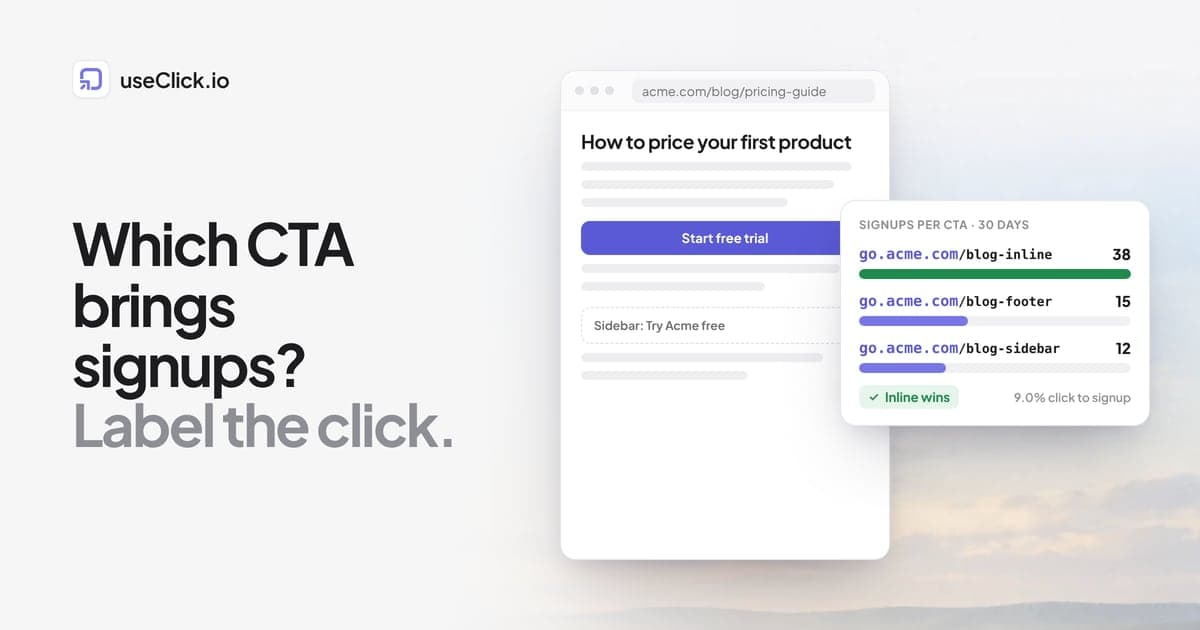
| blog-inline | 420 | 38 | 9.0% |
| blog-sidebar | 610 | 12 | 2.0% |
| blog-footer | 150 | 15 | 10.0% |
| blog-nav | 90 | 4 | 4.4% |
The sidebar gets the most clicks and the fewest signups per click. The end-of-post box gets few clicks, but the people who reach the end of an article and still click are ready. The button inside the article does both. In this example you would keep the inline button, keep the footer box, and test a different offer in the sidebar rather than removing it.
Common mistakes
Using the short link for internal navigation everywhere. Tracked links are for calls to action you want to measure, not for every internal link. Normal internal links help readers and search engines move through your site, and a redirect adds a step. Keep the short links on the four or five CTAs that matter.
Changing two things at once. If you move the sidebar banner and rewrite its copy in the same week, you will not know which change did it. Change one variable per period.
Reading percentages from tiny numbers. Five signups against two signups is not a result. Wait until each CTA has at least a few dozen clicks before drawing conclusions, and look at a full month to smooth out weekday effects.
Forgetting phones. Many themes collapse the sidebar below the content on small screens, so a sidebar CTA on mobile sits at the very bottom of the page. Check the device breakdown before blaming the copy.
Inconsistent names. Inline, in-post and article_button are three different values in a report. Write the naming scheme down once and use it for every new CTA.
What about Google Analytics?
You can build the same report in Google Analytics 4 with event tracking on each button and a conversion on the signup. It works, but it needs a consent banner in the EU for the cookies it sets, and visitors who decline are missing from the numbers. A cookie-free setup counts everyone who loads the page with JavaScript, without a banner; do you need a cookie consent banner explains where the line is.
You can also run both. The UTM tags on the short links are standard, so GA4 reads them too.
Frequently asked questions
How do I track button clicks in WordPress without a plugin?
You can add an onclick handler to each button in a Custom HTML block, or use Google Tag Manager to fire an event on clicks with a certain class. Both work but need code and maintenance. A separate tracked link per button gives you the click count with no code at all.
Can I track CTA clicks on the free plan?
Yes. Create a separate short link for each CTA and you see clicks per link on every plan, including Free. UTM tags and campaigns need Starter, and goals that connect a click to a signup need Growth or above.
Do short links on my own blog hurt SEO?
Not for a handful of CTAs. They are calls to action, not the internal links search engines use to understand your site. Keep your normal internal links as plain links and use tracked links only for the buttons you want to measure.
What is utm_content used for?
utm_content tells apart several links that share the same source, medium and campaign, such as two buttons in one email or the sidebar and footer of a blog. It is the right tag for CTA tests.
How long should I run a CTA test?
Until each CTA has enough clicks and signups to compare, and at least a few weeks so weekdays and weekends both count. On a small blog that can mean a full month or more.
Can I see which blog post the signup came from?
Not from a shared CTA link, because every post uses the same one. If one post matters enough, give its CTA a link of its own, for example pricing-guide-inline, and its clicks and signups show up separately. The Top pages card shows which posts get the readers in the first place.
The decision in one paragraph
If you want to know which call to action earns its place, label the click, not the page. One short link per CTA, one UTM naming scheme, one goal on the signup, and a few weeks of patience give you a table you can act on. The useClick plugin keeps the links and the website numbers in wp-admin, the tracking needs no cookies, and the same links work in your newsletter and social posts when you want to compare the blog with everything else.