
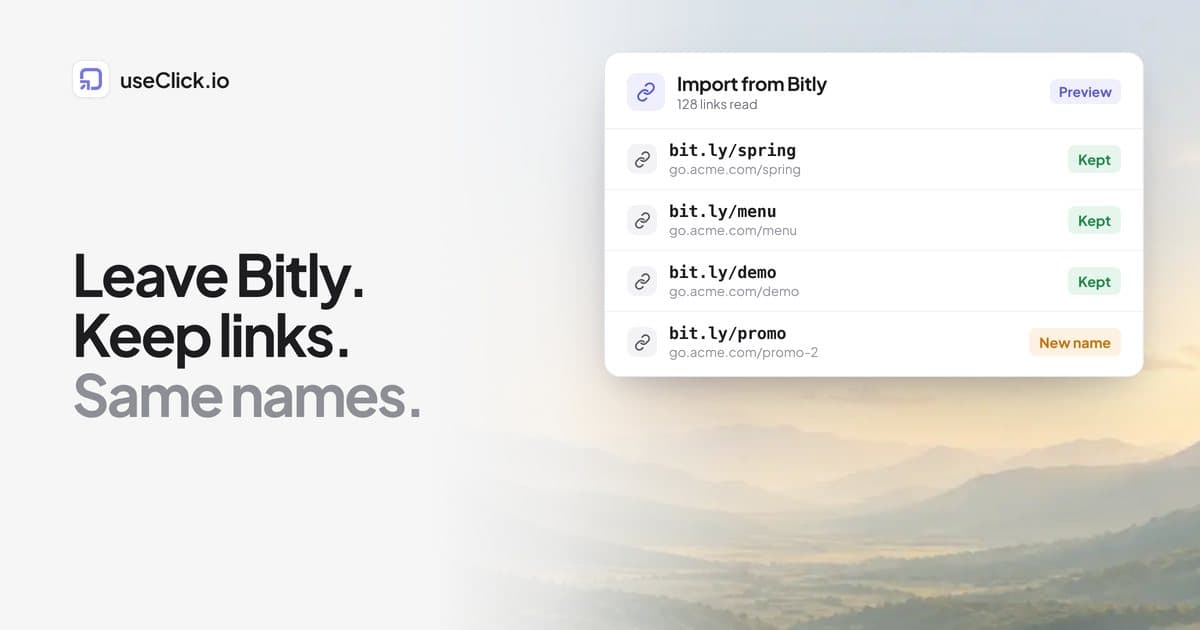
Quick answer: You can move your Bitly links to useClick in about ten minutes. In Short links, click Import, choose Bitly, paste a Bitly access token and import. useClick copies each destination and title and keeps the original back-half when it is free. Importing needs the Starter plan or above. Your old bit.ly links keep working until you close the Bitly account, so keep it open until everything you printed or posted points to the new links.
Key Takeaways
- Importing copies destinations, titles and, when free, the same back-halves. It does not copy click history.
- Every old short URL stays live on Bitly until you close that account, so there is no rush and no cutover day.
- A downloadable "old to new" CSV maps each Bitly URL to its useClick URL.
- If your Bitly links use your own domain, add that domain to useClick after importing and the same back-halves answer there.
Why people move, and why they stall
Most people who search for how to leave Bitly are not unhappy with the redirect. They are reacting to something specific: the interstitial ads on free links (what changed and what it costs to remove them), an entry plan that is billed annually, or short retention for click data. The reason they stall is the same for almost everyone: fear of breaking links that are already out in the world, on packaging, in old emails, in a video description.
That fear is reasonable, and it shapes the whole migration. The safe way to do it is to treat it as copying, not moving. The old links keep working while you build the new setup next to them, and you only close the old account when nothing important points to it any more. If you are still comparing tools, the free Bitly alternatives and the useClick vs Bitly comparison put the two side by side, tier against tier.
What moves and what does not
| Item | Moves to useClick? | Notes |
|---|---|---|
| Destination URL | Yes | Each one goes through the same safety check as a link you create by hand |
| Link title | Yes | |
| Back-half (the part after the slash) | Yes, when free | Back-halves are unique across useClick. If yours is taken, the link gets a new random one and the result tells you |
| Your old short URL itself | No | It stays on Bitly and keeps redirecting until you close that account |
| Click history | No | useClick counts from the first click after the move. Export what you need from Bitly first |
| Custom domain | Not automatically | Add the domain to useClick after importing (see below) |
| QR codes, tags, folders | Not automatically | Recreate the ones you still use |
Be clear with yourself about the click history. If you report on year-over-year numbers, export or screenshot the Bitly figures before you close the account, because they will not be in useClick.
Before you start
- Plan: importing is part of Starter ($12 a month) and above, like bulk upload. On Free the Import dialog offers an upgrade.
- Link total: imported links count toward your plan's link total. If you import more than your plan has room for, the first links up to the limit are imported and the dialog says so. See plans and limits.
- Size: up to 5,000 links are read per API import. For more, use a CSV export.
- A Bitly token: you will paste a Bitly access token. Bitly's own settings page for API access tells you where to create one.
Step by step: import with a Bitly access token
- In the useClick dashboard, open Short links and click Import.
- Choose Bitly.
- Create the access token in Bitly (the dialog says where) and paste it in. useClick uses the key once, on its server, to read your links. It is not stored.
- Click Read links and check the preview. Skim it for anything you no longer need. This is a good moment to leave old test links behind.
- Leave Keep the original back-halves when they are free switched on, then click Import.
When it finishes, useClick lists anything it skipped, usually destinations that failed the safety check, with the reason. The full walkthrough is in the import guide.
Step by step: import from a CSV (any other shortener)
Moving from TinyURL, Cuttly, YOURLS, Shlink or Kutt works the same way with a file:
- Export your links as CSV from the old tool.
- In Short links, click Import, choose CSV file and pick the file (up to 10 MB). Commas, semicolons and tabs all work.
- useClick guesses the Destination URL, Short URL or back-half and Title columns from their headers. Change a guess if it is wrong.
- Click Import.
Get the old-to-new map
After the import, use Download old to new URLs. It produces a CSV with every old short URL next to its new useClick URL. This file is the most useful thing in the whole process, because it turns "go and update everything" into a checklist:
- Sort it by importance and start with what is printed or hard to change.
- Update newsletters, bios, email signatures and your website first, since you control those.
- Leave printed material alone until the next print run. The old links keep working in the meantime.
If your Bitly links use your own domain
Many teams use a branded domain on Bitly, such as go.yourbrand.com. You can keep it. After importing, add the same domain to useClick (the custom domain guide and the DNS setup guide cover it, and every plan includes custom domains). Once DNS points at useClick, the same back-halves answer on the same domain, so existing printed links keep working with no change on your side.
Two cautions. First, changing DNS moves all traffic on that subdomain at once, so import first and verify that the back-halves were kept before you flip the record. Second, make the DNS change at a quiet time and test a handful of links straight afterwards.
What you get after the move
The point of migrating is not the import, it is what the links can do afterwards. On useClick that includes:
- A link's destination can be edited after creation on every paid plan, so a changed landing page no longer means a new link.
- Campaigns and UTM parameters on links from Starter.
- A/B/C/D split tests from Growth, where one short link sends traffic to up to four destinations.
- Website analytics next to your link clicks, with no cookies and no consent banner, so you can see what happens after the click.
None of this requires you to rebuild your links. It sits on top of the ones you just imported.
A migration checklist
- Export any Bitly analytics you need to keep.
- Upgrade to Starter or above and run the import.
- Download the old-to-new CSV and sort it by priority.
- If you use your own domain, add it to useClick and verify the imported back-halves before changing DNS.
- Update the places you control: website, newsletter templates, bios, email signatures.
- Test ten important links on a phone.
- Keep the Bitly account open until nothing important still points to it.
- Close it when you are ready.
Frequently asked questions
How do I export my links from Bitly?
You do not need a file for Bitly. useClick reads your links directly with an access token you create in Bitly, so the import itself is the export. If you want a backup of your Bitly data, take it separately before you close the account.
Will my old bit.ly links stop working when I switch?
Not while the Bitly account stays open. They keep redirecting on Bitly. They stop only when that account is closed, which is why you should close it last.
Can I keep the same back-halves?
Yes, when they are free on useClick. Back-halves are three to 50 letters, numbers, hyphens or underscores and are unique across useClick. If one is taken, the link gets a new random back-half and the import result says so.
Do I lose my click history?
On useClick, yes: counting starts from the first click after the move, because the history lives with the old service. Export what you need from Bitly before closing it.
Can I import on the Free plan?
No. Import is part of Starter and above. You can try the rest of the product on Free first, then upgrade when you are ready to move.
What if I have more than 5,000 links?
Use the CSV route for the rest. API imports read up to 5,000 links at a time, and CSV files can be up to 10 MB.
Does the import store my Bitly token?
No. useClick uses the key once, on its server, to read your links, and does not keep it.
The decision in one paragraph
Migrating from Bitly is low risk because it is a copy: the old links keep working while the new ones come online. Import, keep your back-halves, work through the old-to-new file, move your own domain only after you have checked the imported links, and close the Bitly account last. If you want to see the result before committing, the useClick plans start free, and the import itself is a few clicks once you are on Starter.