
Quick answer: Once your AI agent is connected to useClick over MCP, run the same four steps every week: ask it which links and campaigns worked, decide what to repeat, have it create the next set of tracked links with UTM tags, and ask the same question again next week. The agent does the lookups and the typing. You keep the decision. The loop works because every answer comes from your own click and signup data, and every new link is tagged so next week's question has something to compare.
Key takeaways
- The value is the loop, not a single clever prompt: review, decide, create, measure.
- Ask for the numbers behind every answer, and treat small samples as small samples.
- Give the agent a naming rule once, so the links it creates are comparable with last week's.
- Let the agent read freely, but keep anything that changes or deletes links under your approval.
- Analytics questions have a daily quota and a five-minute cache, so one good weekly review fits easily, even on Free.
The loop: review, decide, create, measure
Most teams use analytics as a rear-view mirror. They look at last week, nod, and open a blank page for next week's links. The loop below closes that gap, and an MCP-connected agent makes each step a few minutes of work instead of an afternoon.
| Step | Who does it | What happens | What you check |
|---|---|---|---|
| 1. Review | Agent | Reads clicks, signups and sources for the last 7 and 30 days | Does every number match the dashboard? |
| 2. Decide | You | Pick one thing to repeat and one thing to stop | Is the sample big enough to trust? |
| 3. Create | Agent | Creates the next tracked links with campaign and UTM tags | Are slugs and tags named by your rule? |
| 4. Measure | Agent | Next week, repeats step 1 and compares | Did the change move the result? |
If you have not connected the server yet, the setup takes about two minutes and is covered in Ask Claude which campaign brought the most signups and in the MCP docs. This post assumes the agent can already see your account.
Before the first review: what the agent needs to see
An agent can only combine data that exists. Three things make the weekly question answerable:
- Campaign links with UTM tags. Every link you share belongs to a campaign and carries
utm_source,utm_mediumandutm_campaign. Campaigns and UTM tags on links need the Starter plan or above. On Free, the agent can still create and read plain links. If UTM tags are new to you, UTM parameters explained covers the basics. - A signup or purchase signal. Your site calls
window.useclick('signup')after a signup, or you have a thank-you page. Custom events are recorded on every plan. - A goal, if you want attribution. Goals (Growth and above) connect a conversion to the short link that brought the visitor. How to track which short link drove a sale shows the setup.
Without the third item you can still review clicks and traffic sources. With it, the agent can say which link produced signups, not only which one got clicks.
Step 1: ask what worked
The first prompt sets the tone for everything after it. Be specific about the window, the sites and the shape of the answer:
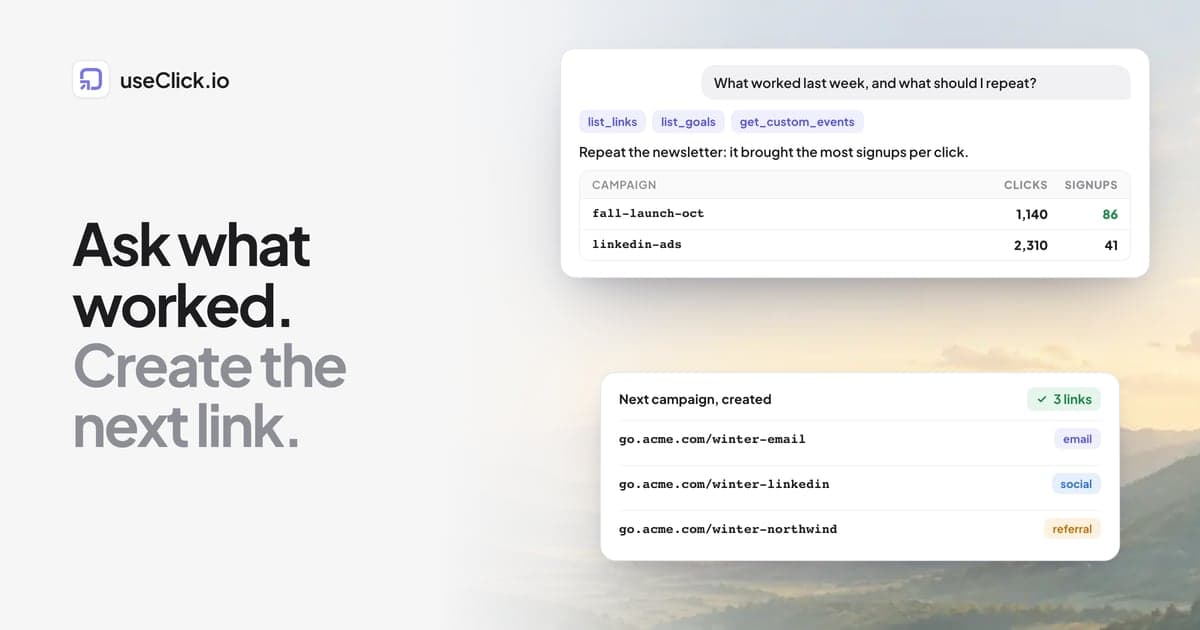
Using useClick, review the last 7 days on acme.com and compare them with the 7 days before (use days=7 and days=14). List my campaigns with clicks, then signups from list_goals and get_custom_events. Which campaign did best, which did worst, and what changed since last week? Show every number you used and say where a sample is too small to conclude anything.
Three details in that prompt do real work:
- "Show every number you used" lets you spot-check against the dashboard in under a minute. The agent can misread a table or mix up two periods, and this is the cheapest guard.
- "Say where a sample is too small" stops the agent from announcing a winner after eleven clicks.
- Two windows turn a snapshot into a trend. A campaign that is flat is a different story from one that doubled.
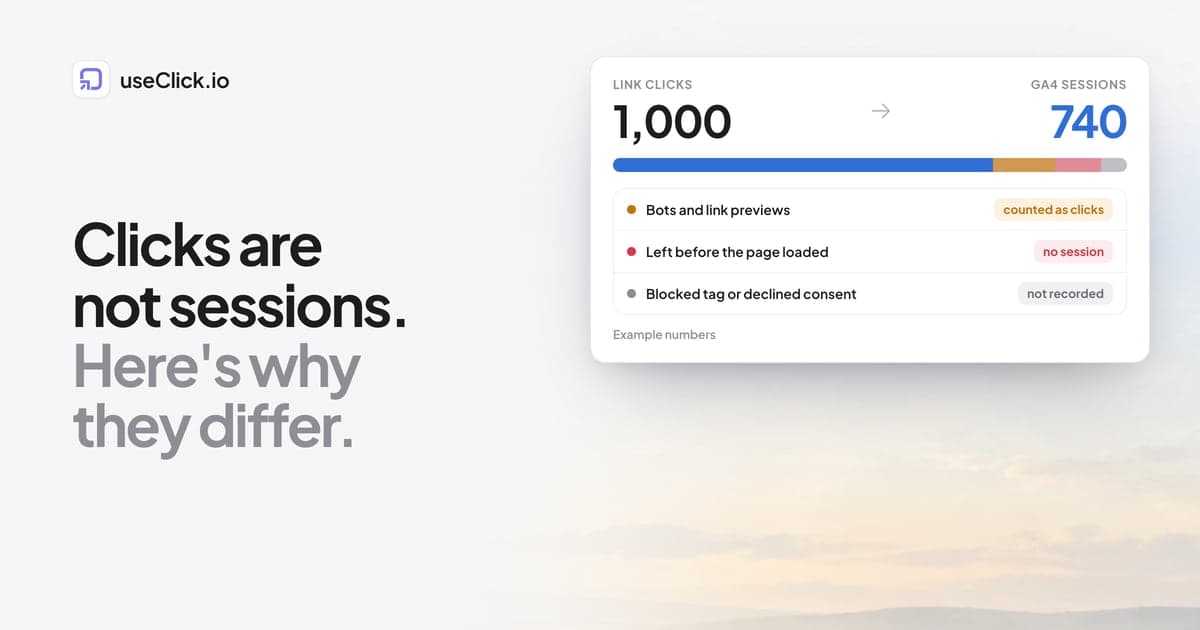
Remember what the numbers are. Link click counts include clicks from known bots and crawlers, and "unique visitors" is an estimate based on an anonymous hash, not a head count. Both are described in the link analytics docs. If a result looks too good, ask the agent to repeat the check using the website analytics for the same period and compare.
Step 2: decide, and keep it to one change
This step stays with you, and it is where most weekly reviews go wrong, because the agent will happily propose ten changes. Pick:
- One thing to repeat. The link or campaign that produced signups, not only clicks.
- One thing to stop or fix. A link with many clicks and no signups usually points at the landing page, not the link.
- One thing to test. A different channel, subject line or call to action.
Changing one thing at a time is what makes next week's comparison meaningful. If you change the channel, the copy and the landing page together, the loop still runs, but you cannot say which change mattered.
Useful rules of thumb, none of them laws:
- A tiny number of clicks says very little. Wait for more before drawing a conclusion.
- A link with a high click count and a low signup count often has a mismatch between the promise in the post and the page behind it.
- A channel with few clicks and a high share of signups is worth more budget or effort, once you have enough clicks to trust the ratio.
Step 3: create the next tracked link
Once you know what to repeat, ask the agent to create the links. This is where the naming rule from the start pays off. Paste it once at the top of the chat, or save it in your assistant's project instructions:
When you create links in useClick, use my naming rule: lowercase only, hyphens instead of spaces, utm_source is the platform (newsletter, linkedin, instagram), utm_medium is the channel type (email, social, referral), utm_campaign is the campaign name with the month, for example winter-sale-nov. Put every link in a campaign with that name. Use the domain go.acme.com and slugs that start with the campaign name.
Then ask for the new set:
Create short links for https://acme.com/winter-sale in a campaign called winter-sale-nov: one each for the newsletter (email), linkedin (social) and a partner called northwind (referral). Follow my naming rule. Then list the links you created in a table with the short URL and the full destination, so I can check the tags.
Check three things in the answer: the short URLs open the page you expect, the UTM tags match the rule, and every link sits in the campaign. The agent creates links with the create_short_link tool, and the tags end up as part of the destination URL, the same as if you had set them in the dashboard.
A note on plans: campaigns and UTM tags on links need Starter or above. On Free, the agent creates the links without them, so the review in step 1 will only be able to compare plain clicks. The UTM builder and the free UTM builder tool are useful for checking what a tagged URL should look like.
Step 4: measure next week
The loop pays off a week later, when you paste the same review prompt from step 1 and add one line:
Last week we created the winter-sale-nov links. How did each of them perform compared with the links from the campaign before?
Because the new links follow the same naming rule and sit in a named campaign, the agent can find them and compare them without guessing. This is the quiet benefit of step 3: the tags are for next week's question, not for this week's.
A review prompt you can reuse
If you would rather not retype the review each week, save this as a project instruction or a snippet:
Weekly review for acme.com. Use useClick. 1) Compare the last 7 days with the 7 days before. 2) List campaigns with clicks and signups, and show the numbers. 3) Name the best and the worst campaign and one likely reason for each, marked as a guess. 4) Suggest exactly one link to repeat and one to fix. 5) Do not create, change or delete any link. Wait for my approval.
The last line matters. It keeps the review read-only until you decide.
Guardrails that keep the loop honest
- Read freely, write with approval. An API key lets the agent create, update and delete links, not only read analytics. Keep creation under a clear instruction, and ask the agent to show what it plans to change before it deletes or edits anything.
- One key per tool. Create a separate API key for the agent, as the API keys guide suggests, so you can revoke it without touching anything else. The key is shown once, so store it in your client's configuration, not in a chat.
- Check the numbers. Spot-check two figures against the dashboard every time. If they differ, ask the agent which period and filter it used.
- Know what it cannot see. The agent sees what your key can see: your links and websites in useClick. It does not see offline sales, a CRM or private messages, and useClick stores no personal data, so there is no per-person view to ask for.
- Respect the quota. Analytics tools have a daily quota per plan (25 on Free, 100 on Starter, 300 on Growth, 1,000 on Pro, 5,000 on Business), and the same question within five minutes comes from a cache and does not count. A weekly review uses a handful of calls.
Running the review automatically
The review half of the loop is a good fit for automation. In n8n, a schedule trigger can run an AI agent node with the useClick MCP client attached and post the answer to Slack every Monday morning. The MCP prompt templates include the full workflow. Automate the reading, not the writing: let the report arrive on its own, and keep creating links as something you trigger after you have read it.
Frequently asked questions
Can an AI agent tell me what worked in my marketing?
It can tell you what your data shows, if it can read that data. Connected over MCP, an agent can read your link clicks, website traffic, custom events and goals, and summarize which campaigns, links and sources produced the most clicks and signups. It cannot know why something worked, so treat its explanations as guesses to test.
What is MCP in plain language?
MCP, the Model Context Protocol, is a standard way for an AI assistant to call tools in other software. For marketing analytics it means the assistant can look up your numbers itself, instead of you exporting a report and pasting it into a chat.
Do I need a paid plan to run this loop?
MCP is available on every plan, so the review step works on Free. Campaigns and UTM tags on links need Starter, and goals that connect conversions to links need Growth. Without them the agent can still review clicks and traffic sources.
How often should I run the review?
Weekly is a good default. Shorter periods give small samples, and longer ones delay the next decision. For a launch, a quick daily check on the main campaign is reasonable.
Can the agent create links safely?
Yes, if you give it a clear naming rule and ask it to list what it created so you can check it. For anything that edits or deletes existing links, ask it to show the plan first and wait for your approval.
Which AI tools work with this?
Claude, Claude Code, Cursor, Codex, ChatGPT, VS Code and n8n can all connect to a remote MCP server. The MCP page lists the setup for each.
What if the agent's numbers do not match my dashboard?
Ask which date range, filters and tools it used, then compare. The usual causes are a different period, a different timezone or counting clicks where the dashboard shows unique visitors.
The decision in one paragraph
If you already ask an AI assistant for marketing help, give it your numbers and give it a job with a clear end: review what worked, pick one change, create the tagged links for it, and ask again next week. Connect useClick over MCP once, agree on a naming rule, keep write actions under your approval, and the weekly review becomes a ten-minute habit. The agent handles the lookups and the typing. The judgment stays with you.