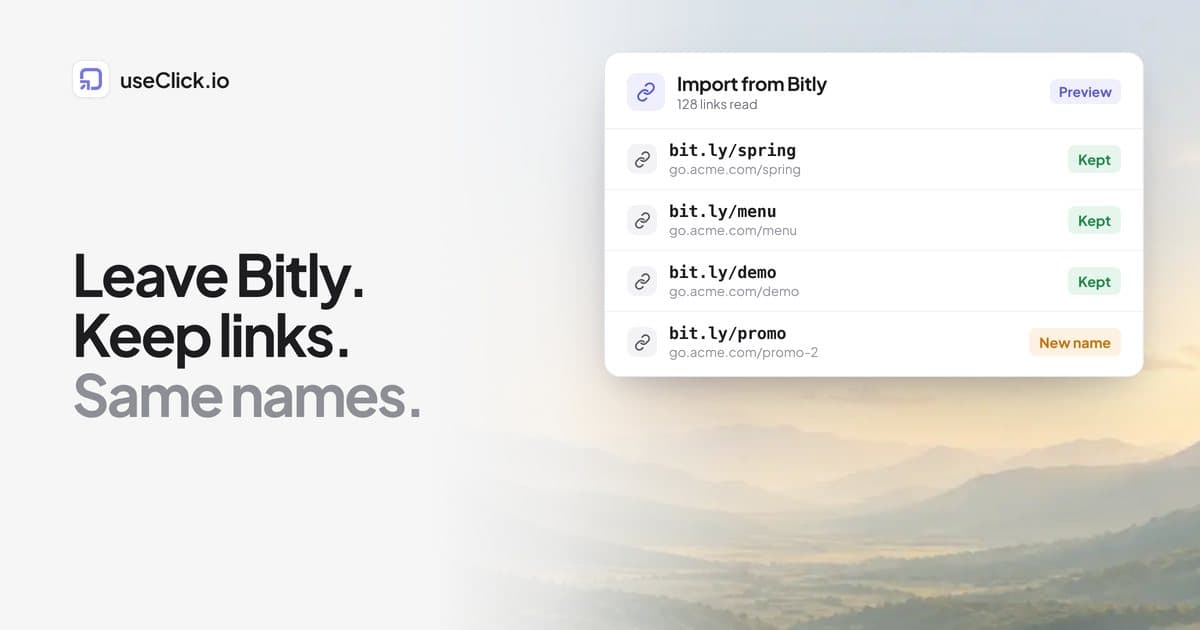

Quick answer: Import your Bitly links into useClick with your Bitly API key, download the list of old and new URLs, then run a search and replace on your WordPress database so posts point at the new short links. If your Bitly links use your own domain, add that domain to useClick after the import so the same back-halves keep answering there. Install the useClick plugin to create new links from the post editor. Old bit.ly links keep working as long as your Bitly account exists.
Key takeaways
- Nothing breaks on day one: bit.ly links keep redirecting while your Bitly account is open.
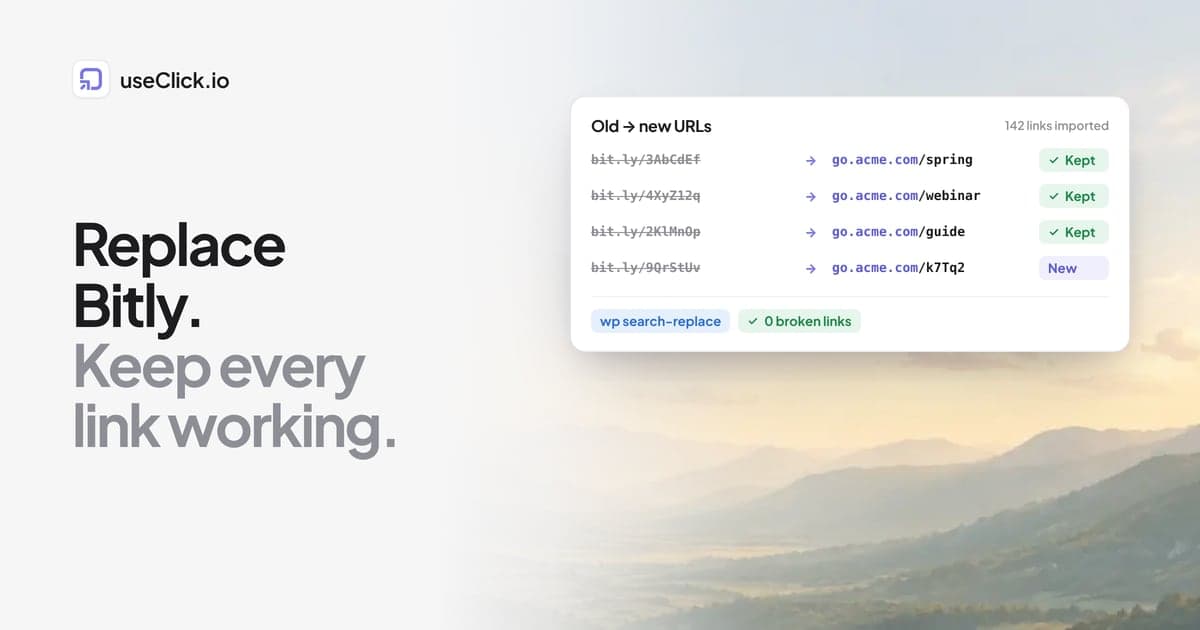
- The import keeps your original back-halves when they are free on useClick, and gives you a CSV of old to new URLs.
- A database search and replace swaps the links in every post at once. Back up first and run a dry run.
- Links on your own branded domain can move without changing a single post: point the domain at useClick after the import.
Should you move at all?
Moving is work, so first be clear about why. The common reasons on WordPress sites:
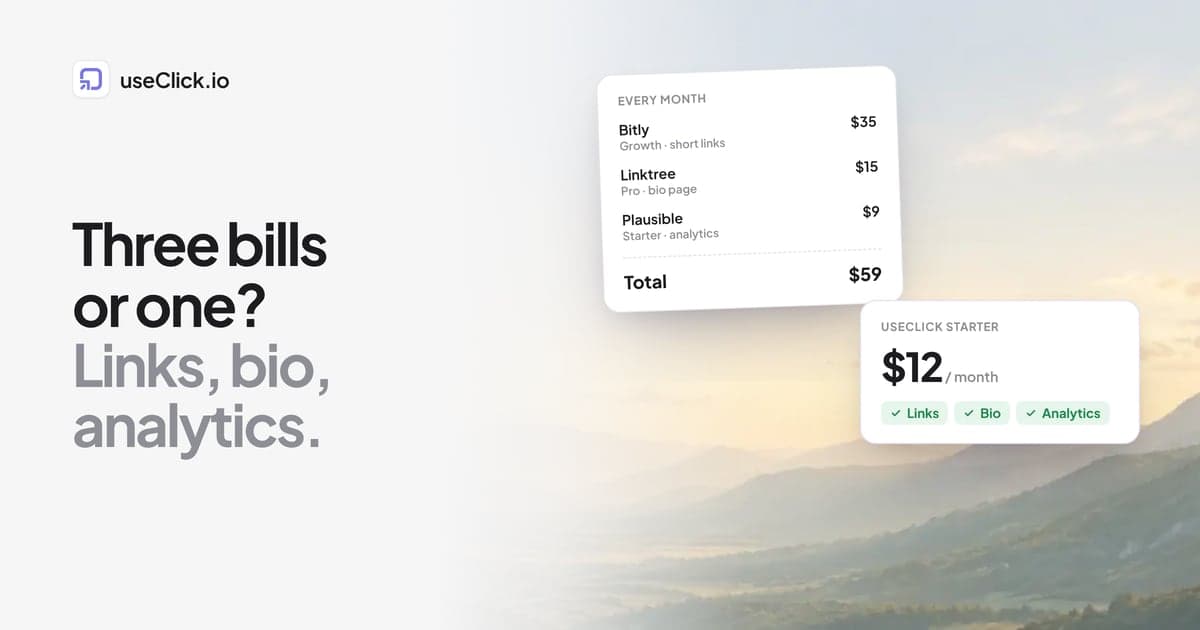
- Price. Bitly puts custom domains and longer click history on its paid plans, and the plan that adds them costs more per month than many small sites want to pay for links alone. Bitly's free plan and ads covers what the free plan shows visitors.
- Two dashboards. Bitly counts clicks, your analytics tool counts visitors, and neither knows about the other.
- Nothing in wp-admin. You create links in another tab and paste them back.
If none of these applies to you, stay where you are. If they do, the move takes an afternoon. The general Bitly migration guide covers non-WordPress details; this post is the WordPress version.
What moves and what does not
| Item | Moves? | How |
|---|---|---|
| Destination URLs and titles | Yes | The import reads them from Bitly |
| Back-halves (the part after the slash) | Yes, when free on useClick | Kept automatically; otherwise a new random one |
| Links on your own branded domain | Yes | Add the domain to useClick after the import |
| bit.ly links in your posts | Replaced | Database search and replace |
| Click history | No | Stays in Bitly; useClick counts from the first click after the move |
| QR codes already printed | Keep working | They point at the old link, which Bitly keeps redirecting |
The last two rows deserve a decision. Export a Bitly report before you close the account if you need old numbers. And keep the Bitly account open, even on its free plan, for as long as printed QR codes or old bit.ly links in other people's posts still bring visitors.
Step 1: Import your Bitly links
Importing is part of the Starter plan and above.
- In useClick, open Short links and click Import. Choose Bitly.
- Create an access token in your Bitly account (the dialog says where) and paste it. useClick uses it once, on its server, to read your links. It is not stored.
- Click Read links and check the preview. Up to 5,000 links are read per import; for more, export a CSV from Bitly and import the file instead.
- Leave Keep the original back-halves when they are free on, and click Import.
- Click Download old → new URLs. Keep this CSV; it drives the next step.
Every destination goes through the same safety check as a link created by hand, so a dead or unsafe destination is skipped and listed at the end. That doubles as a cleanup. The import guide has the details for each provider.
Step 2: Keep your branded domain (if you have one)
If your Bitly links look like go.acme.com/spring rather than bit.ly/xyz, you may not need to touch your posts at all.
- In useClick, add
go.acme.comunder Custom domains. - Change its DNS record from Bitly to the target useClick shows, and click Verify DNS. SSL is set up automatically.
- Test a few old links in a private window. Because the import kept the back-halves,
go.acme.com/springnow answers from useClick.
Custom domains are on every useClick plan. How to set up a custom domain explains the DNS record. Plan the switch for a quiet hour: DNS changes can take a while to reach everyone.
Step 3: Swap bit.ly links in your posts
For links on bit.ly itself, the posts have to change. Doing it by hand works for ten posts. For a hundred, use a search and replace on the database.
Back up first. Take a full database backup with your host's tool or a backup plugin. A search and replace cannot be undone without one.
Option A: WP-CLI. If you have shell access, WP-CLI's search-replace command handles serialized data correctly. Run it once per line of your CSV, starting with a dry run:
wp search-replace 'https://bit.ly/3AbCdEf' 'https://go.acme.com/spring' --dry-run --precise
wp search-replace 'https://bit.ly/3AbCdEf' 'https://go.acme.com/spring' --precise
With many links, generate these lines from the CSV with a spreadsheet formula and paste them into a script.
Option B: a search and replace plugin. Several plugins in the WordPress directory offer a database search and replace with a dry run. They are fine for a few dozen replacements; for hundreds, WP-CLI is faster.
Two details matter in both cases:
- Replace the full URL including
https://, not just the back-half, so you never touch unrelated text. - Check for both
https://bit.ly/andhttp://bit.ly/, and for links people pasted without the protocol.
Finally, clear your page cache so visitors see the new links.
Step 4: Install the plugin for new links
From now on you create links where you write. Install useClick from the WordPress plugin directory and click Connect with useClick.io on its Settings screen.
What you get in wp-admin:
- a Short link box in the post editor sidebar that creates a short link for the post
- a Short link column with click counts in the post and page lists
- a Short links screen to search, filter by campaign, copy, edit and delete
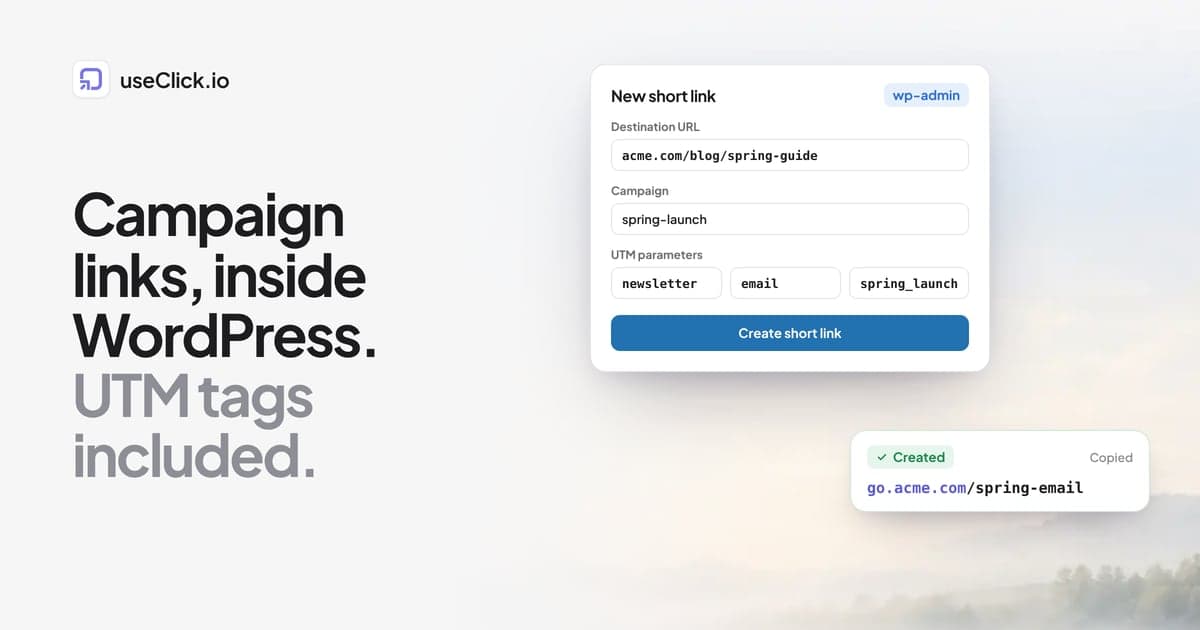
- a Create short link form with campaigns, UTM tags and geo-targeting on Starter and above
- optionally, cookie-free website analytics for the site itself, with its report inside WordPress
The last point is the one that changes the most. Bitly tells you a link was clicked. With the website tracker on, the same account shows what those visitors read and, on Growth and above, which links led to signups or sales. Creating campaign links inside WordPress shows the daily workflow.
Step 5: Check that nothing broke
A short checklist before you call it done:
- Search your database for
bit.lyonce more. Anything left is either intentional or missed. - Open five posts with replaced links and click each one in a private window.
- Run the free link checker on your most-visited pages to catch broken links.
- Check that printed QR codes and links in old newsletters still reach the right place (they go through Bitly, so they should).
- Watch the useClick dashboard for a few days: clicks on the new links confirm traffic arrived.
Frequently asked questions
Will my old bit.ly links stop working when I switch?
No. Bitly keeps redirecting links as long as your Bitly account exists. Replacing them in your posts just means new visitors go through your new links. Keep the account if old links are still printed or shared elsewhere.
Can I keep the same short links?
Yes, when the links use your own domain: import them, then point the domain at useClick and the same back-halves answer there. Links on bit.ly itself belong to Bitly, so they get new useClick URLs.
Does the import bring my click history?
No. Click history stays with Bitly. useClick starts counting from the first click after the move. Export Bitly reports first if you need old numbers.
Is there a WordPress plugin for Bitly?
Plugins that connect WordPress to Bitly exist in the plugin directory. Before installing one, check who maintains it and when it was last updated. The useClick plugin is built and maintained by useClick and connects to your account in one click.
How many links can I import?
Up to 5,000 per import with an API key, more with a CSV file. Imported links count toward your plan's link total.
Do I need to change my theme or page builder?
No. Links in themes and page builders are stored in the database like post content, so the search and replace covers them. Links hard-coded in theme files are the exception: search the theme folder for bit.ly and edit those by hand.
The decision in one paragraph
Replacing Bitly in WordPress is an afternoon: import, keep your domain, swap the bit.ly URLs with one backed-up search and replace, and create new links from the post editor from then on. Nothing breaks on the day you switch, because Bitly keeps redirecting what you leave behind. What you gain is links, clicks and website analytics in one account and inside wp-admin, instead of two subscriptions that never talk to each other.