
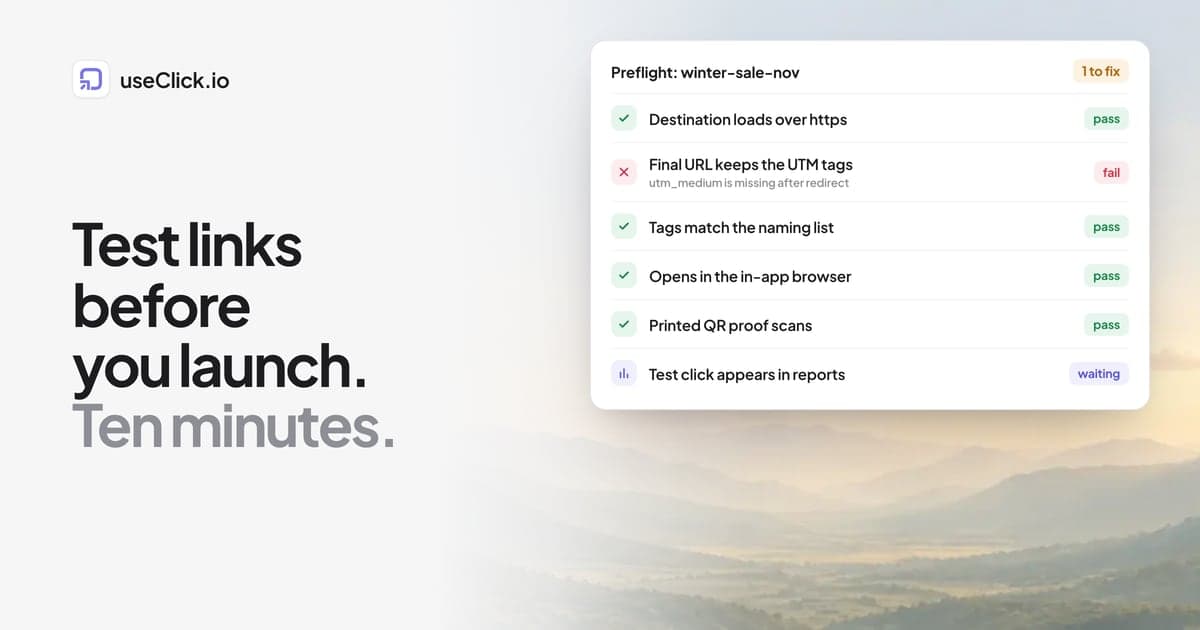
Quick answer: Before a campaign goes out, test every link in the same way a visitor will meet it. Check that the destination loads over https, that the final URL after all redirects still carries the full UTM tags, that the spelling matches your naming list, that the link opens correctly on a phone and inside the in-app browser of the platform you post on, that any QR code scans from a printed proof, and that your own test click appears in your link and website reports. It takes about ten minutes per campaign, and it is the cheapest part of a launch to skip and the most expensive to regret.
Key takeaways
- Most campaign tracking failures are made before launch: a typo in a tag, a redirect that drops parameters, a landing page without the tracking script.
- Test the link the way the visitor meets it: on a phone, in the in-app browser, from a printed QR code.
- A test click is the proof. If you cannot see it in your reports shortly after you click, do not launch.
- Use a builder and a second pair of eyes. The person who made the link is the worst person to check it.
- Keep the checklist short enough that people actually run it.
Why a checklist, and why before launch
Fixing a broken campaign link after launch is painful. The post is published, the email is sent, the flyers are printed. You can sometimes change where a short link points, but you cannot recover the clicks that were already attributed to the wrong source or lost.
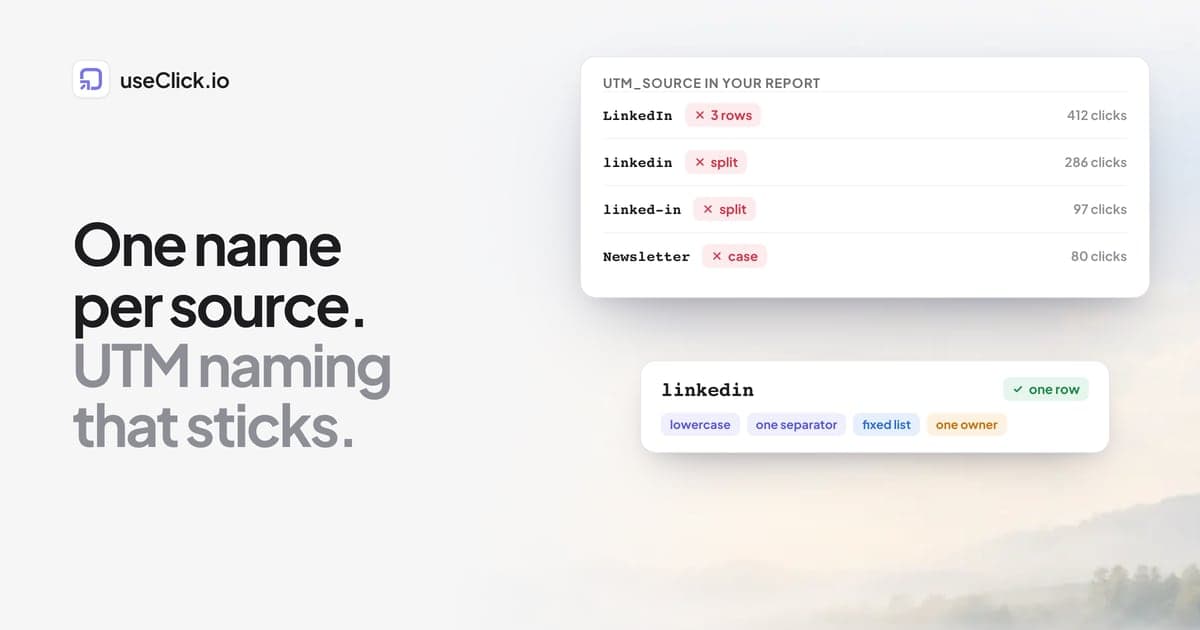
The mistakes are almost always small. A source spelled Newsletter in one link and newsletter in another. A redirect from http to https that strips the query string. A landing page that was redesigned last week without the analytics script. None of them are visible when you look at the link. They show up two weeks later as a report that does not add up, and then you cannot tell what happened.
If naming is your weak spot, start with UTM naming conventions for small marketing teams. This post is the next step: once you have the rules, how do you check that each link follows them and actually works?
Who does what
Two roles, even in a team of two:
- Builder. Creates the links from the naming list and the register.
- Checker. Runs the checklist below, ideally someone else, or the same person on a different day with fresh eyes.
If you work alone, build the links, take a break, and check them the next morning. The reason is simple: people read what they meant to type.
The preflight checklist
Run it per campaign, not per link, but test a representative sample of links on each channel. For a campaign with ten links across three channels, check every channel at least once and every link at the level of the first four rows.
| # | Check | How | Pass looks like |
|---|---|---|---|
| 1 | Destination loads | Open the short link in a normal window | The right page loads over https, no warning |
| 2 | Redirect chain keeps the tags | Run the link through a redirect checker | The final URL still has every utm_ parameter |
| 3 | Tag spelling follows the list | Compare source, medium and campaign with the register | Lowercase, exact values from your list |
| 4 | Required tags are all there | Look for utm_source, utm_medium, utm_campaign |
None missing |
| 5 | The page has the tracking script | View the landing page, check your analytics fires | A visit shows up in real time |
| 6 | Works on a phone | Open on mobile data, not only on Wi-Fi | Loads quickly, content readable |
| 7 | Works in the in-app browser | Tap it inside the app you will post in | Page loads, no blocked content |
| 8 | Preview looks right | Check the link preview card | Correct title, description and image |
| 9 | QR code scans | Scan a printed proof, not the screen | Opens the right link first time |
| 10 | Test click is counted | Click once, then open the reports | The click appears with the right source |
Rows 1 to 4 are about the link. Rows 5 to 8 are about the page and the platform. Rows 9 and 10 are about the world and your reports. If a row fails, fix it before you move on, because later rows depend on earlier ones.
Check by check
1. Destination loads
Open the short link yourself. Look for browser warnings, a login wall, a page that redirects to a different language, or a 404 that appeared because someone renamed a page. In useClick a link's header shows its status, such as Active or Broken / Timeout when the health check cannot reach the destination, so also look at that status after you create the link. The link checker is a quick way to test a URL that is not in your account.
2. Redirect chain keeps the tags
This is the check most people skip and the one that most often breaks attribution. A redirect on your own website can remove the query string, so the visitor lands on the right page but your analytics sees no campaign. Run the link through the redirect checker and look at the last URL, not the first. If tags are missing there, fix the redirect rule on the site, not the link.
3 and 4. Tag spelling and completeness
Compare the tags to your register. The common errors are capital letters, a space or underscore where you use hyphens, a medium that is not on the list, and a missing utm_campaign. Why link clicks and GA4 sessions differ explains what happens to untagged or mis-tagged visits: they land in Direct or (not set) and the campaign looks smaller than it was.
5. The page has the tracking script
Short link clicks are counted by the link tool, but what the visitor does on the page is counted by your website analytics. If the landing page is new, check that it includes the script. With useClick website analytics, open the page in a normal window and watch for the visit in the dashboard, which also shows the source and UTM tags the visit arrived with.
6 and 7. Phone and in-app browser
A large share of campaign traffic arrives on phones, and many social apps open links in their own in-app browser, which behaves differently from Safari or Chrome. Tap the link inside the app you will post in, on mobile data. Look for slow loads, blocked scripts, and pages that look different. If the tracking script does not load inside an in-app browser, you will see clicks without visits.
8. The preview
When you paste a link into a message or a post, the platform fetches the page and builds a preview. A missing image or a wrong title is easy to fix before launch and impossible to fix once the post is live and cached. Check it with a preview tool such as the social media preview, and see how Open Graph images work if the image is wrong.
9. QR codes
A QR code on screen is not a test. Print a proof at the real size on the real material and scan it with two phones, in the light where it will be used. Contrast, size and distance fail in ways a screen never shows. Use one link per placement, so a flyer, a poster and a package each report separately. How to make a trackable QR code covers the setup.
10. The test click
This is the proof that the whole chain works. Click the final link once, from a private window. Then check:
- In the link analytics, the click should appear in the recent clicks list shortly after, with country, device, browser and referrer. See the link analytics docs.
- In your website analytics, a visit should appear with the right source and campaign.
If your click shows up in the link report but not in the website report, the problem is on the landing page or in a redirect. If it shows up in neither, the link or the destination is wrong.
The first hour after launch
QA does not end at send. In the first hour:
- Look at the link's clicks over time. A campaign that has been live for twenty minutes and shows zero clicks has a problem.
- Check the sources. If everything arrives as Direct, parameters are being lost.
- Check the country and device split against your expectations. A campaign for German customers that shows mostly one far-away country deserves a look.
- Keep the fix ready. On Growth and above, a backup URL sends visitors elsewhere when a destination breaks, which buys you time while you fix the page.
A shorter version for small launches
For a single link in a single post, you can reduce the list to five checks: destination loads, final URL keeps the tags, spelling matches, preview looks right, test click is counted. That is about three minutes, and it catches most real problems.
Frequently asked questions
What should I check before launching a campaign link?
That the destination loads, that the final URL after every redirect still contains all UTM parameters, that the tags are spelled exactly as in your naming list, that the page has your tracking script, and that a test click appears in your link and website reports.
How do I test a link on a phone?
Open it on mobile data, not only Wi-Fi, and open it inside the app where you will share it, since in-app browsers can behave differently from the normal browser.
How long does campaign link QA take?
About ten minutes for a typical campaign if you use a checklist, less for a single link. It takes longer the first time, when you set up the register and the naming list.
How do I know a redirect is stripping my UTM tags?
Run the link through a redirect checker and read the last URL. If the utm_ parameters are missing there, a redirect on the destination site removed them.
Do I need to test every link in a campaign?
Test every link at the level of the destination, the redirect and the tags. For the phone, in-app browser and preview checks, test at least one link per channel.
Should the person who made the link also check it?
Preferably not. The maker tends to read what they intended. A second person, or the same person on another day, catches more mistakes.
What if I find a mistake after launch?
Fix the destination or tags where you can, note the date in your register, and report the campaign in two parts, before and after the fix. Do not try to correct the past data, but do write down what changed.
The decision in one paragraph
Treat every campaign link as something you test, not something you publish. Use a builder and a naming list, then check the destination, the redirect chain, the tags, the page, the phone, the preview and the QR proof, and finish with a test click you can see in your reports. Ten minutes before launch saves a week of explaining a report that does not add up, and it makes every later comparison between campaigns something you can trust.