

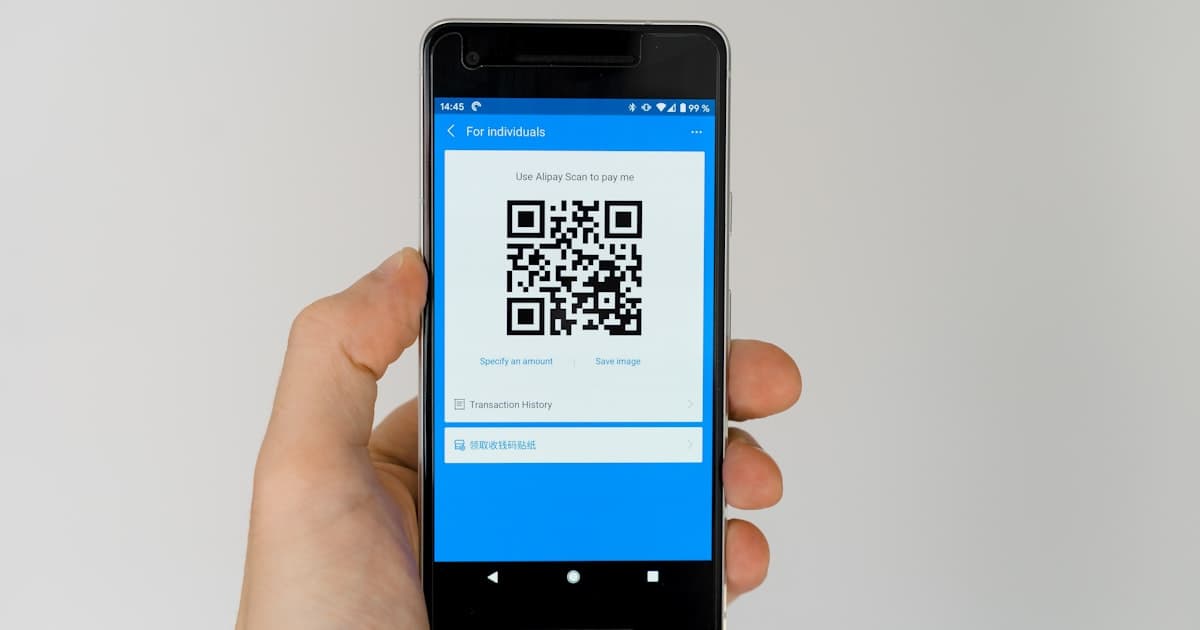
Quick answer: Google Forms doesn't make a QR code itself, so you build one from the form's link. Open your form, click Send, then the link icon (🔗), copy the URL (tick Shorten URL if you like), paste it into a QR code generator, and download the code. Want to know how many people actually scanned it? Use a trackable QR code that records every scan. Here's both ways.
Key Takeaways
- Google Forms has no built-in QR generator, so you make one from the form's share link.
- A trackable QR code counts scans (not just submissions), by location and device.
- 72% of consumers say they scanned a QR code in the past month (Wave Connect, 2026), so QR reliably drives responses.
How Do You Make a QR Code for a Google Form?
Three steps, about a minute:
- Get the form link. Open your Google Form, click Send (top right), then the link tab (🔗). Copy the URL. Tick "Shorten URL" for a tidier
forms.gle/...link if you want. - Generate the QR code. Paste that link into a QR code generator. The code now points at your form.
- Download and share. Save it as a high-resolution PNG or SVG, then add it to handouts, posters, table tents, or slides. Scanning it opens your form.
That's all it takes for a basic, static QR code, which is fine when all you need is for people to reach the form.
Why a Plain QR Code Isn't Enough
Here's the trap. A static code gets people to your form, but it tells you nothing about who or how many. And response count alone is misleading, because plenty of people scan, glance at the form, and never hit submit. So if 12 responses come in, did 15 people scan or 150? You can't tell.
That gap matters more than it used to. About 72% of consumers say they scanned a QR code in the past month (Wave Connect, 2026), so scanning is no longer the friction point. The friction is measurement. When you run the same form across an event, a classroom, and a few store locations, the question isn't "did it work," it's "which placement worked."
A trackable QR code answers that. It routes each scan through a short link before sending the person to your form, so you capture:
- total and unique scans,
- location (country and city),
- device and time of each scan.
Make one by creating a short link to your Google Form, generating the QR code from that link, and reading the scan analytics in your dashboard. Because it's a dynamic QR code, you can even repoint it to a new form later without reprinting.
Where Do Google Form QR Codes Work Best?
Anywhere a printed prompt beats typing a long URL:
- Events and conferences: feedback and lead-capture forms on signage.
- Classrooms: quizzes, attendance, and surveys students scan from a slide.
- Restaurants and retail: feedback forms on receipts or table tents.
- Print materials: registration or RSVP forms on flyers and posters.
In our experience, the scan-to-submit gap is widest at busy events, which is exactly where knowing your scan count (not just your response count) saves you from cutting a placement that was actually pulling its weight.
Frequently Asked Questions
Does Google Forms have a built-in QR code generator?
No. Google Forms gives you a shareable link (Send, then the link tab), but not a QR code. You paste that link into a QR code generator to create the code. It's a quick extra step, and it's the same for both docs.google.com/forms and shortened forms.gle links.
How do I make a QR code for a Google Form for free?
Copy your form's link (Send, then the link tab), paste it into a free QR code generator, and download the image. There's no cost and no signup needed for a basic code, and it works the moment you print it.
Can I track how many people scanned my Google Form QR code?
Yes, but only if the QR code is built on a trackable short link. Create a short link to your form, generate the QR code from it, and you'll see total and unique scans, location, and device for each scan, which is far more telling than the response count alone.
Will the QR code still work if I edit the Google Form?
Yes. The QR code points to the form's URL, and that URL doesn't change when you edit questions, so existing printed codes keep working. The only time a code breaks is if you delete the form or create a brand-new one with a different link.
Collect Responses and Know What Drove Them
Making the code is the easy part. Knowing which poster, table, or event actually drove your responses is the win. Generate a free trackable QR code for your Google Form, and every scan gets counted.