
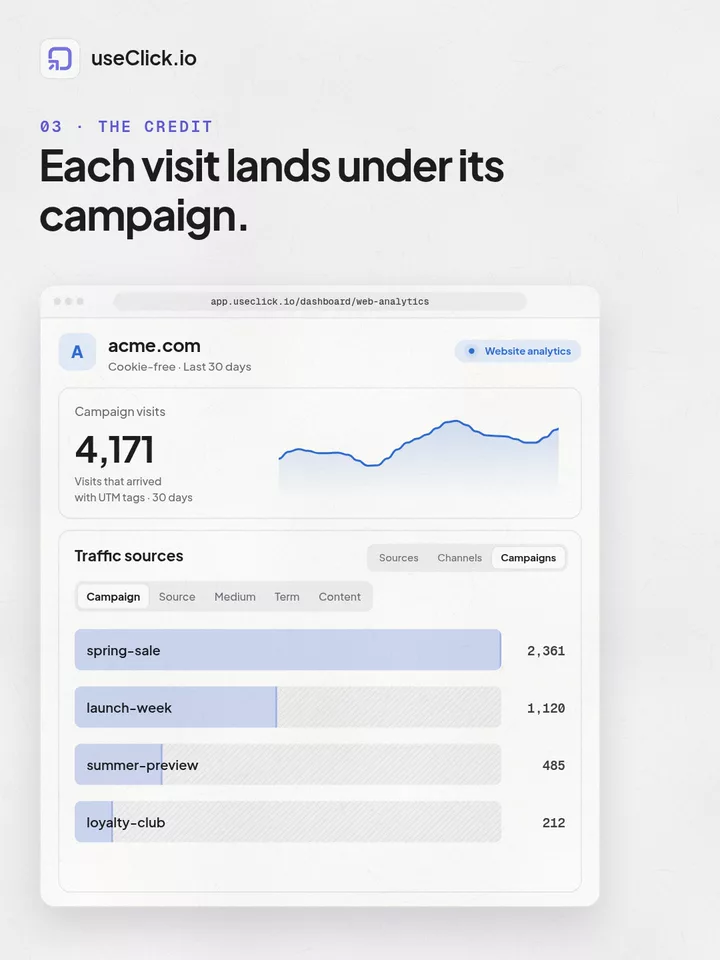
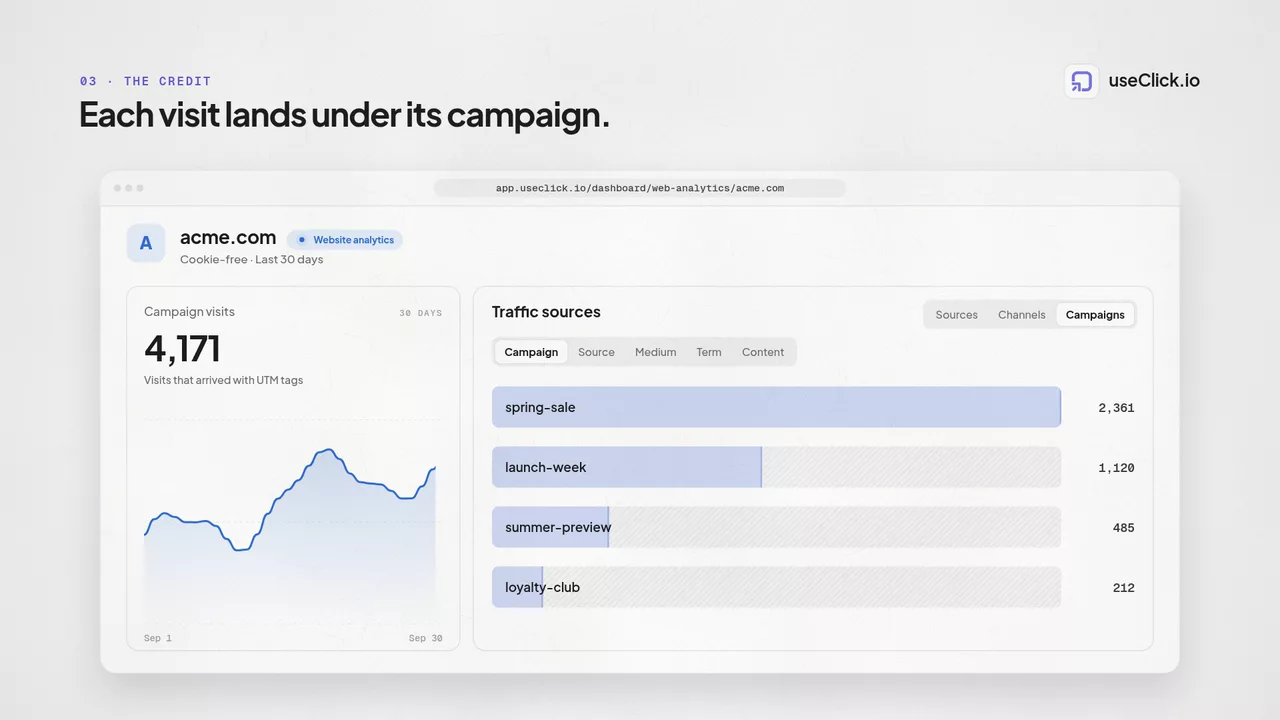
UTM (Urchin Tracking Module) parameters are tags you add to URLs to track the effectiveness of marketing campaigns across traffic sources and channels. UseClick's Constructor UTM helps you create consistent, error-free tracking tags every time.
El etiquetado UTM adecuado es esencial para entender qué esfuerzos de marketing generan
This guide covers UTM fundamentals, best practices, and how to use UseClick's Constructor UTM effectively.
Plan Availability
The UTM Builder is included on the Starter, Growth, Pro, and Business plans. It opens as a step inside the create-link modal when you add or edit a link, and it is not available on the Free plan.
See the full plan comparison on our pricing page.
UTM Builder Interface
UseClick's UTM builder provides an intuitive interface for creating properly formatted tracking URLs:

Fill in utm_source, utm_medium, and utm_campaign (required), plus optional utm_term and utm_content. UseClick appends them to your destination URL when you save the link.
Understanding UTM Parameters
UTM parameters are tags added to your URLs that help analytics tools identify traffic sources and campaign performance. Here are the five standard UTM parameters:
Required Parameters
utm_source
Identifies where the traffic comes from (e.g., google, facebook, newsletter)
utm_medium
Identifies the marketing medium (e.g., email, social, cpc, organic)
utm_campaign
Identifies the specific campaign (e.g., spring_sale, product_launch)
Optional Parameters
utm_content
Differentiates similar content or links (useful for A/B testing)
utm_term
Identifies paid search keywords (primarily for Google Ads)
Campaign Attribution Strategies
Effective UTM usage requires consistent naming conventions and strategic parameter choices. Here's how to build a systematic approach:
Naming Convention Best Practices
✅ Good Naming
- • Consistent format: lowercase with underscores
- • Descriptive but concise
- • No spaces or special characters
- • Date formats when relevant (2024_q1)
❌ Avoid These
- • Mixed capitalization (Facebook vs facebook)
- • Spaces or special characters
- • Overly long parameter values
- • Inconsistent date formats
Channel-Specific UTM Strategies
Email Marketing
Social Media
Paid Advertising
Real-World UTM Examples You Can Copy
The UTM Builder itself is a plain five-field form — it does not ship with selectable templates. These are complete parameter combinations for common marketing scenarios that you can copy directly into the builder's source, medium, campaign, and content fields:
Email Newsletter Example
Social Media Campaign Example
Content Marketing Example
Common UTM Mistakes and How to Avoid Them
Inconsistent Parameter Values
Problem: Using "Facebook," "facebook," and "fb" for the same source
Solution: Create a standardized list of approved parameter values
Parameter Formatting
Problem: Using "spring_sale" and "spring-sale" interchangeably
Solution: Use consistent formatting (underscores preferred)
Campaign Naming
Problem: Using "q2_2024_spring_sale_email_campaign_version2"
Solution: Keep it simple: "spring_sale_2024_q2"
Date Formatting
Problem: Using "2024-q2", "q2-24", "2024q2"
Solution: Standardize on one format (e.g., "2024_q2")
Not Using utm_content for A/B Testing
Problem: Missing opportunities to track content performance
Solution: Use utm_content to differentiate link placements and variations
UTM Parameter Best Practices
Maintain a UTM Dictionary
Keep a central document with approved parameter values:
- • Standardized source names (google, facebook, linkedin)
- • Consistent medium types (email, social, cpc, organic)
- • Campaign naming conventions by quarter or initiative
- • Content type standards for different materials
For organizing your UTM-tagged links, consider using our campaign management features to group related links.
Regular Campaign Audits
Review your UTM usage monthly to identify optimization opportunities:
- • Check for parameter inconsistencies
- • Identify high and low-performing campaigns
- • Archive completed campaigns
- • Update templates based on learnings
Track the performance of your UTM-tagged campaigns with our comprehensive analytics to identify which campaigns drive the best results.
Test Your UTM Links
Always verify your UTM parameters before launching campaigns:
- • Click through to ensure URLs work correctly
- • Verify parameters appear in analytics tools
- • Test on different devices and browsers
- • Document working URLs for team reference
Who Uses UTM Tagging
Marketing & Growth Teams
Tag every campaign link with a consistent source, medium, and campaign combination so channel performance is comparable across email, social, and paid.
- • Email newsletters
- • Paid social ads
- • Organic social posts
- • Partner co-marketing
Pair tagged links with Campaigns to group related short links together.
Affiliate & Partner Marketers
Attach UTM parameters to outbound links before wrapping them in a branded short link, so each partner or placement stays distinguishable in your reporting.
- • Affiliate placements
- • Influencer posts
- • Partner newsletters
- • Sponsored content
Agencies Managing Multiple Clients
Keep each client's campaigns tagged with their own source and medium values, then organize the resulting short links by client or account.
- • Client campaign tracking
- • Multi-channel reporting
- • Consistent naming across accounts
- • Handoff-ready link lists
How the UTM Builder Works
Available on the Starter, Growth, Pro, and Business plans, opened from the create-link modal.
Open the UTM Builder
From the create-link modal, add UTM parameters to open the builder's parameter form.
Fill In Your Parameters
Enter utm_source, utm_medium, and utm_campaign (required), plus utm_term and utm_content if you need them.
Save Your Short Link
UseClick appends your parameters to the destination URL and wraps it in a branded short link when you save.
Check Click Activity
Open the link's analytics page to review click volume and referrer sources for the campaign you tagged.